Nextcloud White Screen After Update in EasyPanel: Troubleshooting and Fix Guide

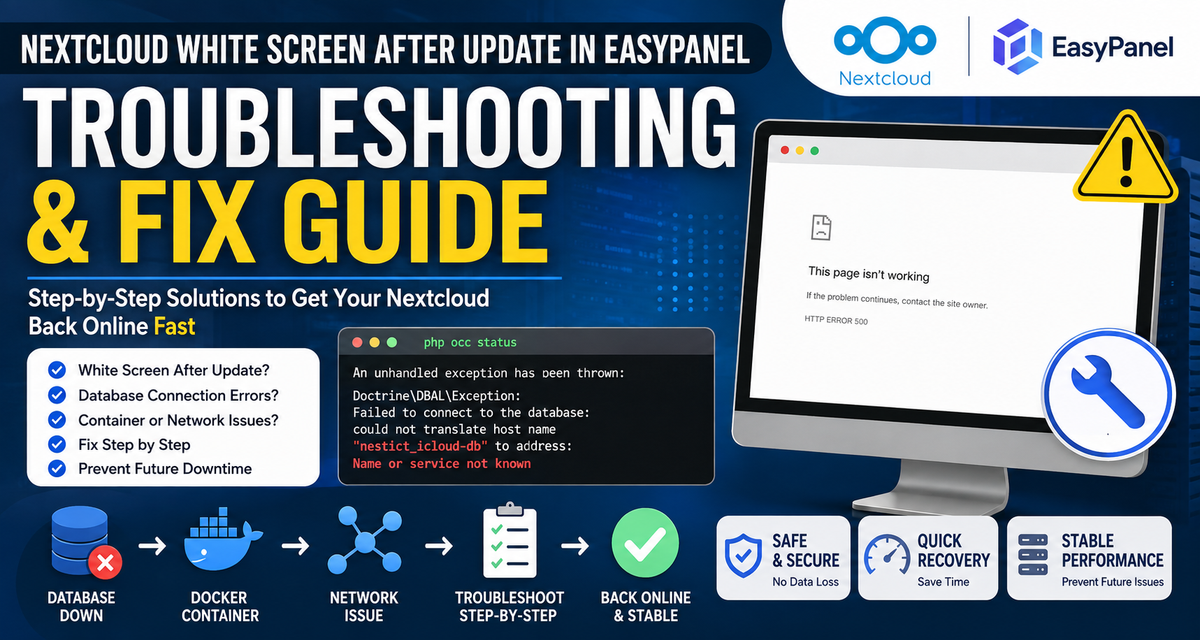
A Nextcloud installation that suddenly turns into a completely blank white screen after an update can look alarming. In a Docker/EasyPanel environment, however, the problem may not be Nextcloud itself.
In one common case, the Nextcloud application was running perfectly, but its PostgreSQL database container had stopped. Nextcloud was therefore unable to resolve or connect to its database, producing a white screen.
This guide explains how to diagnose and fix this type of problem safely.
The Problem
After updating Nextcloud in EasyPanel, the website may display:
White screen / blank page
Trying to run:
php occ statusmay produce an error similar to:
Doctrine\DBAL\Exception:
Failed to connect to the database

SQLSTATE[08006] [7]
could not translate host name
"nestict_icloud-db" to address:
Name or service not known
The important part is:
could not translate host nameThis indicates that Nextcloud cannot resolve the hostname assigned to its database service.
It does not necessarily mean that the database has been deleted or corrupted.
What Causes This?
In an EasyPanel/Docker installation, Nextcloud and PostgreSQL normally run as separate containers.
A typical architecture looks like this:
                    Internet
                       │
                       ▼
                 EasyPanel Proxy
                       │
                       ▼
              ┌─────────────────┐
              │    Nextcloud    │
              │    Container    │
              └────────┬────────┘
                       │
                       │ Docker Network
                       ▼
              ┌─────────────────┐
              │   PostgreSQL    │
              │    Container    │
              └────────┬────────┘
                       │
                       ▼
                Persistent Volume
Nextcloud doesn't normally connect to PostgreSQL using an IP address.
Instead, it uses the Docker/EasyPanel service name, for example:
nestict_icloud-dbIf that database container stops, is removed, renamed, or becomes disconnected from the Docker network, Nextcloud can no longer resolve the hostname.
The result can be a white screen.
Step 1: Open the Nextcloud Terminal
In EasyPanel:
Project → Nextcloud → Nextcloud service → Terminal
Run:
cd /var/www/htmlThen check Nextcloud:
php occ statusIf the database is unavailable, you may see:
Failed to connect to the databaseor:
could not translate host nameThis is the first major clue.
Step 2: Identify the Database Host
Check the database hostname configured in Nextcloud:
grep -n "dbhost" config/config.phpFor example:
'dbhost' => 'nestict_icloud-db',This tells us that Nextcloud expects PostgreSQL to be reachable using:
nestict_icloud-dbDo not randomly change this value.
First determine whether that service actually exists.
Step 3: Test DNS Resolution
From the Nextcloud container run:
getent hosts nestict_icloud-dbIf the database is available, you should receive an IP address.
For example:
172.18.0.5 nestict_icloud-dbIf you receive nothing, or something similar to:
Name or service not knownNextcloud cannot resolve the database service.
You can also test:
ping -c 2 nestict_icloud-dbA failed hostname lookup strongly suggests a Docker/EasyPanel service or networking problem.
Step 4: Check the Database Container in EasyPanel
Go back to:
EasyPanel → Your Project
Locate the PostgreSQL database service.
Check whether it is:
Runningor:
StoppedIf it is stopped, start it.
Give PostgreSQL a few seconds to initialize.
Then return to the Nextcloud terminal and run:
php occ statusIf the database has successfully restarted, Nextcloud should be able to communicate with PostgreSQL again.
Step 5: Restart the Database Container
If PostgreSQL is stopped, restart it from EasyPanel.
After restarting, check the database logs.
Look for messages indicating:
- PostgreSQL started successfully
- database system is ready to accept connections
- out-of-memory errors
- disk-full errors
- permission errors
- corrupted database files
- failed health checks
- unexpected shutdowns
A database that repeatedly stops should not simply be restarted repeatedly.
You need to determine why it stopped.
Step 6: Check Nextcloud Again
Once PostgreSQL is running:
cd /var/www/htmlRun:
php occ statusA healthy installation should return information such as:
installed: true
version: ...
maintenance: false
The exact version will depend on your installation.
Step 7: Check Whether the Update Is Complete
Once database connectivity is restored, run:
php occ upgradeIf an upgrade is pending, Nextcloud should now be able to communicate with PostgreSQL and complete it.
Do not repeatedly run the upgrade while the database is unavailable.
Database connectivity must be restored first.
Step 8: Run Nextcloud Repair
After a successful upgrade:
php occ maintenance:repairThen update the Apache/Nextcloud rewrite configuration:
php occ maintenance:update:htaccessFinally restart the Nextcloud container from EasyPanel.
Step 9: Check the Nextcloud Log
Nextcloud's main log is normally located at:
data/nextcloud.logRun:
tail -n 100 data/nextcloud.logLook for errors such as:
SQLSTATE
Doctrine\DBAL
Connection refused
Name or service not known
If these errors disappear after restarting PostgreSQL, the database container was almost certainly the cause of the white screen.
Docker-Level Troubleshooting
If you have SSH access to the VPS hosting EasyPanel, you can inspect the containers directly.
Run:
docker psFor a cleaner output:
docker ps --format "table {{.Names}}\t{{.Status}}\t{{.Networks}}"You should be able to identify both:
Nextcloud
PostgreSQL
Check the Docker networks:
docker network lsThen inspect the relevant network:
docker network inspect NETWORK_NAMEBoth the Nextcloud and PostgreSQL containers should be attached to the appropriate Docker network.
If the Database Hostname Changed
Suppose config/config.php contains:
'dbhost' => 'nestict_icloud-db',but EasyPanel now has a database service with a completely different service name.
Do not immediately edit the configuration.
First establish why the service name changed.
Changing the hostname incorrectly could make the situation worse.
The correct database hostname must correspond to a service that:
- Exists
- Is running
- Is reachable from Nextcloud
- Uses the correct PostgreSQL database
- Is attached to the same Docker network
Don't Delete the Database Volume
This is extremely important.
If Nextcloud suddenly displays a white screen, do not immediately delete or recreate PostgreSQL with a fresh volume.
Avoid commands or actions that destroy persistent database storage.
For example, do not casually remove:
PostgreSQL volumeor use destructive Docker commands while troubleshooting.
Your Nextcloud files may still be perfectly intact, and your database may simply have been stopped.
Why Restarting PostgreSQL Fixed the Problem
In the reported scenario, the error was:
could not translate host name
"nestict_icloud-db"
The Nextcloud container itself was running.
However, the database container was not available.
Once the PostgreSQL container was restarted:
Nextcloud
   │
   │
   ▼
nestict_icloud-db
   │
   ▼
PostgreSQL
   │
   ▼
Database
the hostname became available again.
Nextcloud could reconnect to PostgreSQL and the application returned to normal operation.
Preventing the Problem in Future
A database container stopping is more important than the white screen itself.
Check the PostgreSQL logs and VPS resources.
Check disk space
From the VPS:
df -hPay particular attention to:
/and the filesystem containing Docker data.
Check memory
free -hAlso check running containers:
docker statsLook for PostgreSQL consuming excessive memory.
Check container status
docker ps -aA database container showing:
Exitedshould be investigated.
Check PostgreSQL logs
From the VPS:
docker logs --tail 200 DATABASE_CONTAINER_NAMEReplace:
DATABASE_CONTAINER_NAMEwith the actual PostgreSQL container name.
Quick Recovery Checklist
If Nextcloud suddenly becomes a white screen after an EasyPanel update:
1. Check php occ status
2. Read the database connection error
3. Check dbhost in config.php
4. Test hostname resolution
5. Check PostgreSQL service in EasyPanel
6. Start/restart PostgreSQL if stopped
7. Check PostgreSQL logs
8. Run php occ status again
9. Run php occ upgrade if necessary
10. Run php occ maintenance:repair
11. Restart Nextcloud
12. Check nextcloud.log
The key lesson
A Nextcloud white screen does not automatically mean the Nextcloud update broke Nextcloud.
In a Docker/EasyPanel deployment, always check the dependency chain:
Browser
   ↓
Reverse Proxy
   ↓
Nextcloud
   ↓
Docker Network
   ↓
PostgreSQL
   ↓
Persistent Database Volume
If PostgreSQL disappears from that chain, Nextcloud may simply have nothing to talk to. Restoring the database service can bring the entire installation back without reinstalling Nextcloud or touching user files.