HELB "Invalid Photo. Photo Must Show Only Your Face" Error: How to Fix It (2026 Guide)

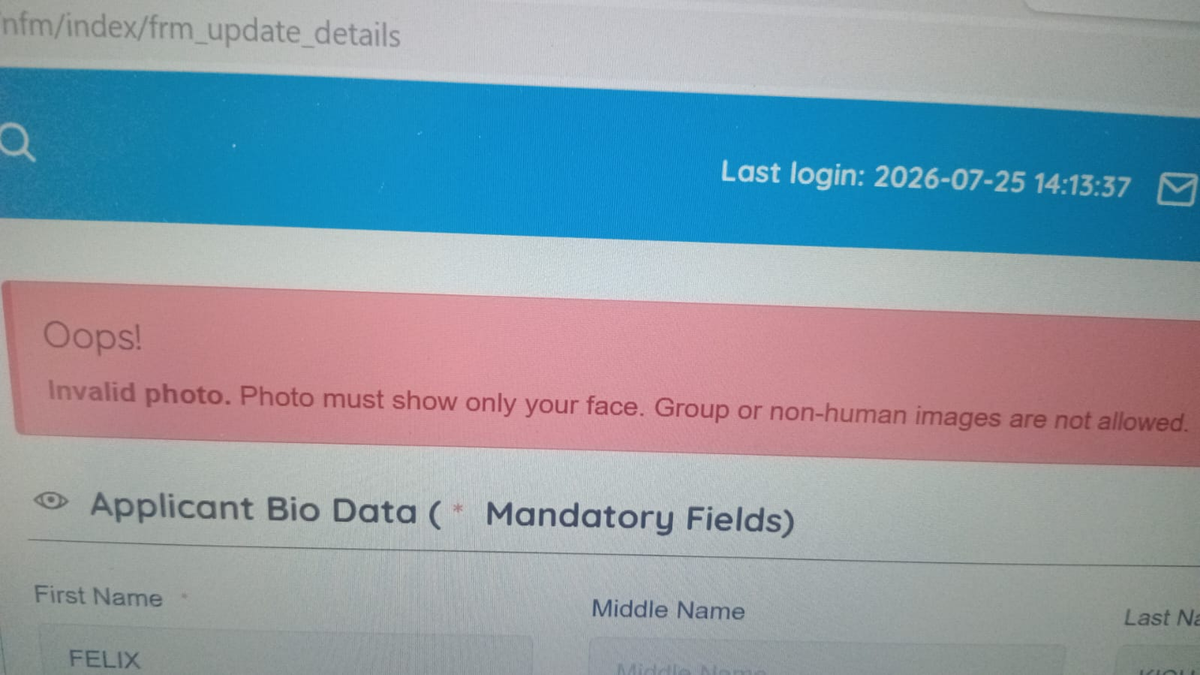
Are you trying to update your profile on the Higher Education Loans Board (HELB) or Higher Education Financing (HEF) portal and receiving the error:
"Oops! Invalid photo. Photo must show only your face. Group or non-human images are not allowed."
You're not alone. This is one of the most common issues applicants experience when uploading their passport photographs. Fortunately, there are several solutions you can try, including one simple workaround that has helped many users successfully complete their applications.
Why Does HELB Reject a Passport Photo?
The HELB/HEF portal uses an automated image validation system to verify uploaded passport photos. The system checks for:
- A single human face
- Proper image quality
- Correct framing
- Suitable background
- Supported file format and encoding
Even if your photo looks perfectly fine, it may still be rejected if the system cannot correctly process the image.
Common reasons include:
- Face is too small or off-center
- Background is too busy
- Poor lighting or shadows
- Low image quality
- Incorrect cropping
- JPEG image encoding issues
The Error Message
Most applicants see the following message:
Oops! Invalid photo. Photo must show only your face. Group or non-human images are not allowed.
This does not always mean your photo contains multiple people. In many cases, the portal simply fails to recognize the face correctly.
Solution 1: Convert the JPEG Photo to GIF
One workaround that has helped many applicants is converting the passport photo from JPEG (.jpg/.jpeg) to GIF (.gif) before uploading.
The conversion changes the way the image is encoded, which can allow the HELB portal to detect the face correctly.
How to Convert
Visit the CloudConvert JPEG to GIF Converter:CloudConvert JPEG to GIF Converter
Upload your passport photo.
Select GIF as the output format.
Click Convert.
Download the converted .gif file.
Upload the GIF image to the HELB portal.
Many applicants have reported that the same passport photo rejected as a JPEG was accepted immediately after converting it to GIF. CloudConvert supports converting JPEG images to GIF online. (CloudConvert)
Note: This is a community-discovered workaround and is not an official HELB requirement.
The "Invalid photo. Photo must show only your face" error can be frustrating, especially when your passport photo meets all the visible requirements. In many cases, the issue lies with how the image is encoded rather than the image itself.
- Convert the JPEG image to GIF using CloudConvert JPEG to GIF Converter.
- Ensure the photo contains only your face with a plain background.
- Resize or crop the image if necessary.
- Try uploading from a different browser.
These simple steps have helped many applicants successfully complete their HELB profile updates and continue with their loan or scholarship applications.