How to Fix an iPhone 8 Plus Screen Stuck on Maximum Zoom (Accessibility Zoom Enabled)

Introduction
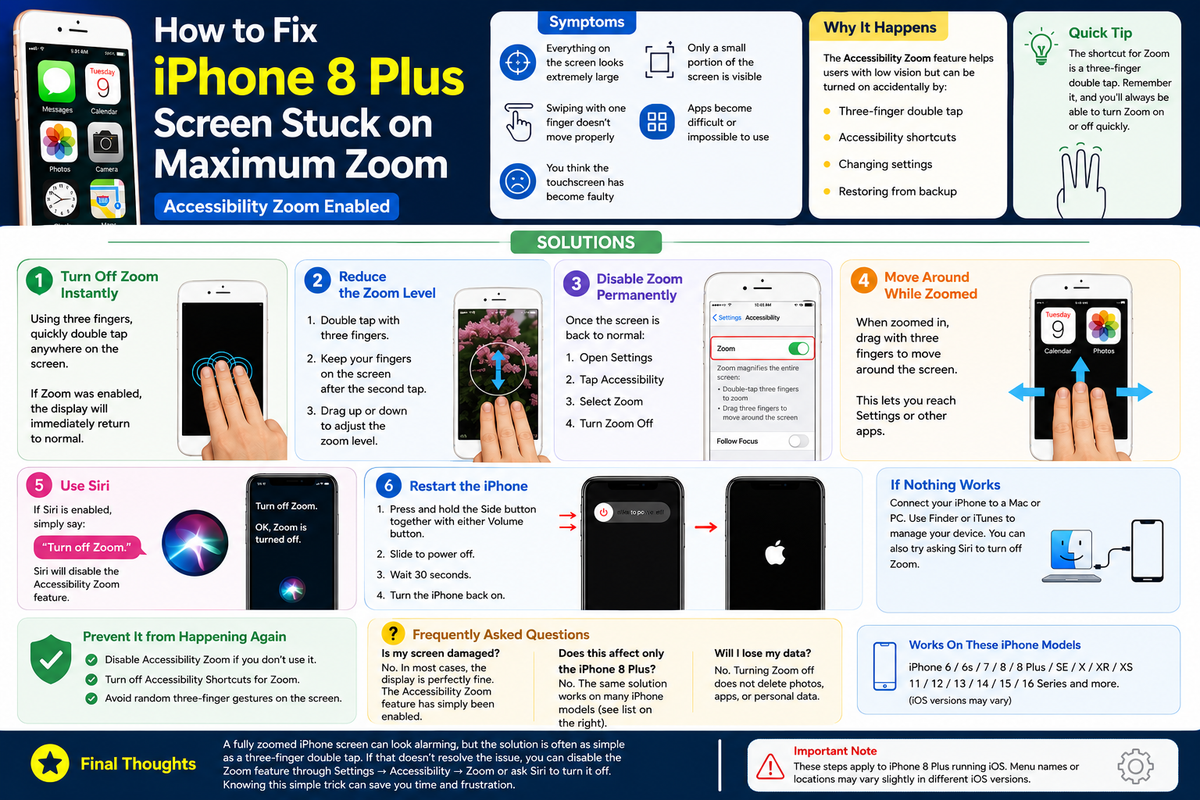
Has your iPhone 8 Plus suddenly zoomed in so much that you can barely operate it? Don't panic. In most cases, your phone isn't damaged. The Accessibility Zoom feature has simply been turned on accidentally.
This guide explains how to restore your iPhone screen to normal in less than a minute.
Symptoms
If Accessibility Zoom is enabled, you may notice:
- Everything on the screen appears extremely large.
- Only a small portion of the display is visible.
- Swiping with one finger doesn't move across the entire screen.
- Apps become difficult or impossible to use.
- You think the touchscreen has become faulty.
Fortunately, this is usually just a settings issue.
Why It Happens
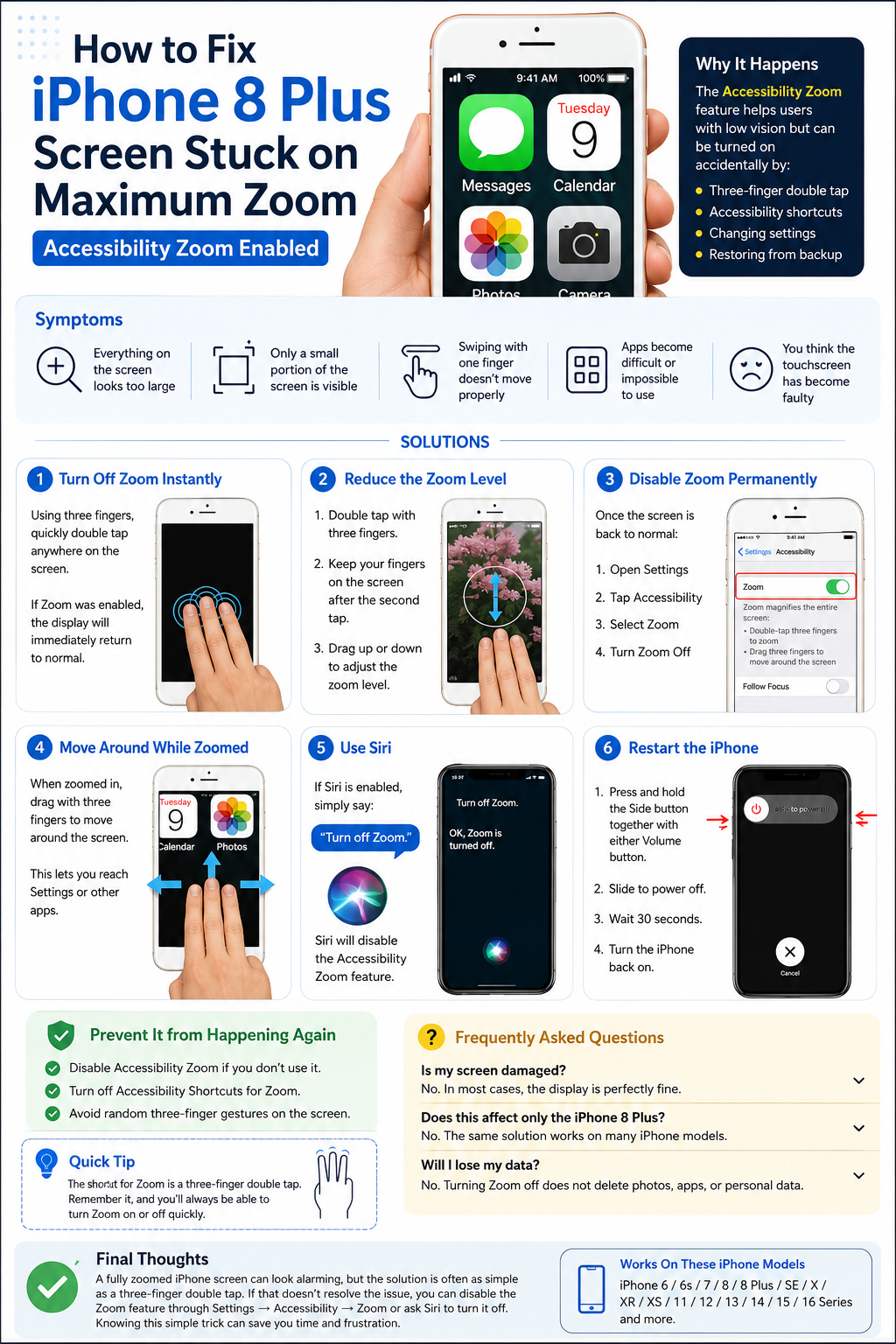
Apple includes a feature called Zoom under Accessibility to help users with low vision.
It can accidentally be activated by:
- A three-finger double tap
- Accessibility shortcuts
- Someone changing accessibility settings
- Restoring settings from another device
Solution 1: Turn Off Zoom Instantly
The quickest fix is:
Step 1
Using three fingers, quickly double tap anywhere on the screen.
If Zoom was enabled, the display immediately returns to its normal size.
Solution 2: Reduce the Zoom Level
If the screen is still enlarged:
- Double tap using three fingers.
- Keep your fingers on the screen after the second tap.
- Drag upward or downward to adjust the zoom level.
Solution 3: Disable Zoom Permanently
Once the screen is back to normal:
- Open Settings
- Tap Accessibility
- Select Zoom
- Turn Zoom Off
This prevents accidental activation in the future.
Solution 4: Move Around While Zoomed
If you cannot reach the Settings app because everything is enlarged:
- Drag with three fingers to move around the screen.
- The display behaves like a magnifying glass, allowing you to navigate until you reach Settings.
Solution 5: Use Siri
If Siri is enabled, simply say:
"Turn off Zoom."
Siri will disable the Accessibility Zoom feature without requiring manual navigation.
Solution 6: Restart the iPhone
If Zoom remains active or the screen becomes unresponsive:
- Press and hold the Side button together with either Volume button.
- Slide to power off.
- Wait 30 seconds.
- Turn the iPhone back on.
Prevent It from Happening Again
To reduce accidental activation:
- Disable Accessibility Zoom if you don't use it.
- Turn off Accessibility Shortcuts for Zoom.
- Avoid random three-finger gestures on the screen.
Frequently Asked Questions
Is my screen damaged?
No. In most cases, the display is perfectly fine. The Accessibility Zoom feature has simply been enabled.
Does this affect only the iPhone 8 Plus?
No. The same solution works on many iPhone models, including:
- iPhone 6
- iPhone 6s
- iPhone 7
- iPhone 8
- iPhone 8 Plus
- iPhone SE
- iPhone X
- iPhone XR
- iPhone XS
- iPhone 11
- iPhone 12
- iPhone 13
- iPhone 14
- iPhone 15
- iPhone 16 series
Will I lose my data?
No. Turning Zoom off does not delete photos, apps, or personal data.
==================================
A fully zoomed iPhone screen can look alarming, but the solution is often as simple as a three-finger double tap. If that doesn't resolve the issue, you can disable the Zoom feature through Settings → Accessibility → Zoom or ask Siri to turn it off.
Knowing this simple trick can save you from an unnecessary trip to a repair shop and get your iPhone working normally within seconds.