Troubleshooting WordPress DNS + cPanel Email Setup (MX, SPF, DKIM, DMARC)

Email Not Delivering?
Email problems are rarely dramatic. They’re quiet. Messages disappear. No bounce. No warning. Just silence.
If your domain can send email but cannot receive any, and you’re using custom DNS on WordPress with cPanel email, this guide will save you hours.
🔍 Symptoms You’ll See
- Emails from your domain reach Gmail and others
- Emails to your domain never arrive
- SMTP tests show:
- SPF: PASS
- DKIM: PASS
- DMARC: PASS
- No bounce-back errors
This is not a spam issue.
This is a DNS routing issue.
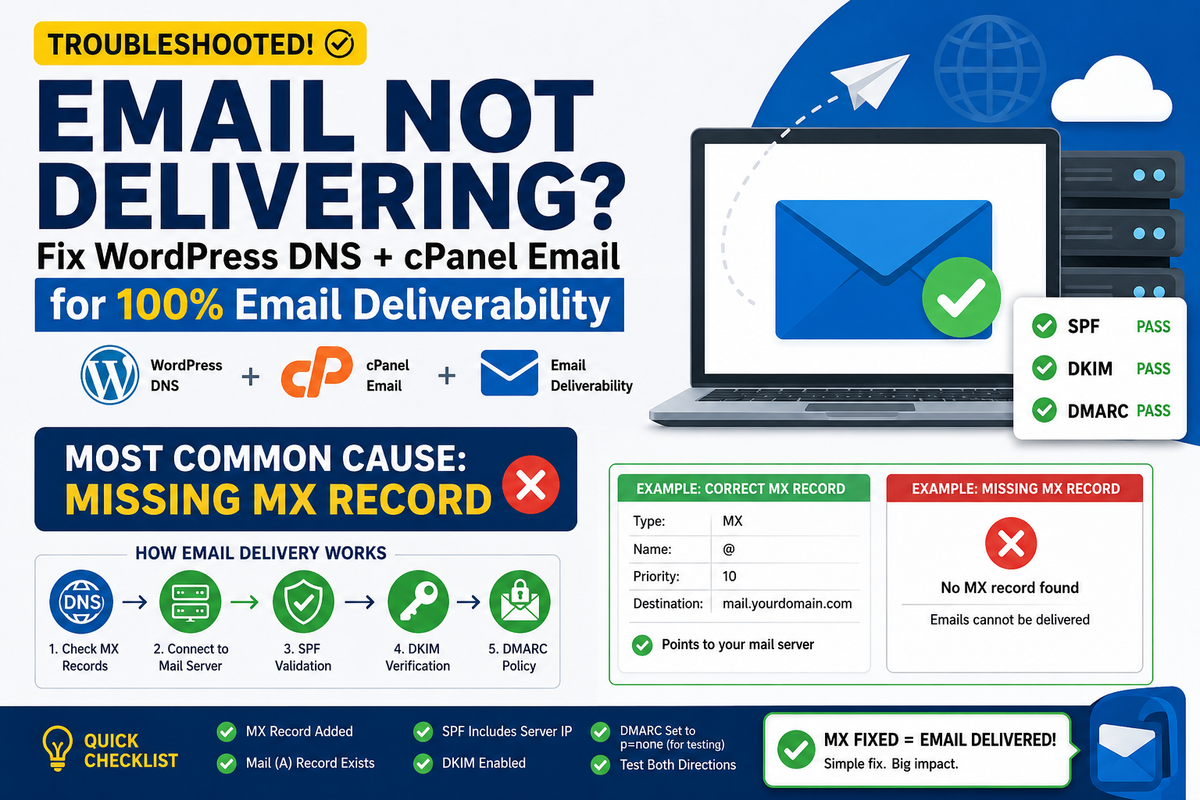
🧠 How Email Delivery Works (Simplified)
Incoming email delivery follows this order:
- Sender looks up MX records
- Connects to your mail server
- SPF verifies sender authorization
- DKIM validates the message signature
- DMARC applies policy rules
👉 If step 1 fails, nothing else happens.
🚨 Root Cause: Missing MX Record
When using WordPress DNS, MX records are not created automatically.
You can have:
- Correct SPF
- Valid DKIM
- Passing DMARC
…and still receive zero email.
🌐 DNS Provider: WordPress.com
Official site: WordPress.com
WordPress DNS works well, but email routing must be configured manually.
🧪 How to Confirm the Problem
Run:
dig MX yourdomain.example +short
❌ Broken result
No output returned.
That means:
“There is no mail server defined for this domain.”
🛠️ Fix: WordPress DNS + cPanel Email
Scenario
- DNS hosted on WordPress
- Email hosted on cPanel
- Mail server IP: masked
✅ Step 1: Add MX Record in WordPress DNS
Go to:
WordPress Domain Manager
Select your domain → DNS records
Add:
| Field | Value |
|---|---|
| Type | MX |
| Name | @ |
| Priority | 10 |
| Destination | mail.yourdomain.example |
✅ Step 2: Ensure Mail Server A Record Exists
| Type | Name | Value |
|---|---|---|
| A | xxx.xxx.xxx.xxx |
This record must point to your actual mail server.
📬 cPanel Requirements
In cPanel, confirm:
- Email account exists
- Mailbox quota not exceeded
- Domain present under Email Routing
- Routing set to Local Mail Exchanger
🔐 Email Authentication (Examples)
SPF
v=spf1 mx a ip4:xxx.xxx.xxx.xxx ~all
DKIM
- Generated automatically by cPanel
- Public key stored in DNS
DMARC (recommended during testing)
v=DMARC1; p=none;
Avoid strict policies until delivery is confirmed.
✅ Verification Checklist
After saving DNS (wait 5–15 minutes):
dig MX yourdomain.example +short
Expected:
10 mail.yourdomain.example.
Then test:
- External → your domain
- Your domain → external
🧠 Why SMTP Tests Can Mislead
SMTP tests validate:
- Sender identity
- Authentication alignment
They do not test inbound routing.
So you may see “PASS” everywhere while inbound email is still broken.
🧑⚖️ Final Verdict
| Component | Status |
|---|---|
| Outgoing mail | ✅ |
| SPF / DKIM / DMARC | ✅ |
| Incoming routing | ❌ |
| Root cause | Missing MX |
🧩 Key Takeaway
SPF, DKIM, and DMARC control trust.
MX controls delivery.
No MX, no inbox.
📌 Best Practices
- Always configure MX when using WordPress DNS
- Verify MX before enabling strict DMARC
- Use only one email provider per domain
- Document DNS changes