Step-by-Step Guide to Going Live on M-PESA Daraja

Step 1: Upgrade an Individual Till to a Business Till
If the client is currently using an individual Till, it must first be upgraded to a business Till.
What to do:
- Send an email to the Safaricom M-PESA Business team
- Email address: M-PESABusiness@safaricom.co.ke
- Clearly request that:
- The Till be upgraded to business
- The Till be enabled to go live on Daraja
What Safaricom will ask for:
- Business registration documents (Certificate of Incorporation or Business Registration)
- Relevant business licenses
- Settlement bank account details
This step plants the seed. Nothing grows without it 🌱
Step 2: Receive Live Access Confirmation from Safaricom
Once Safaricom approves and enables the Till:
You will receive an email containing:
- Your Daraja username
- Your organisation name (as submitted in the application)
- Access credentials to the M-PESA Business Portal
This confirms the Till is now Daraja-ready.
Step 3: Create and Configure a Daraja Account
Now the technical door opens 🚪
Actions to take:
- Create an account on the Daraja Portal
- Log in and create a new app
- Select only the APIs you actually need
- Enter:
- Daraja username
- Shortcode (Till number)
- Organisation name
Verification step:
- Safaricom will send a one-time notification code to the Till owner’s phone
- Enter this code to complete the “Go Live” process
Step 4: Receive API Credentials
Once the app is live:
Safaricom will email the Daraja account owner:
- Consumer Key
- Consumer Secret
- Pass Key
These credentials are what your system uses to interact with the M-PESA APIs (STK Push, confirmations, callbacks, etc).
Handle them like keys to a vault 🔐
Important Notes (Read Carefully)
1. Daraja Account Must Be Created by the Owner
Always let the actual business owner create the Daraja account.
Why?
- Changing ownership later requires emailing API support
- This process can take weeks
Avoid future headaches by doing it right the first time.
2. Live App Must Be on the Owner’s Daraja Account
Do not create the live app on a developer or third-party account.
If you do:
- You must email API support to delete it
- The owner must wait before creating it again
- Delays are common
Ownership matters. Treat it like land title 🧾
3. Do Not Select All APIs Blindly
Choose APIs intentionally.
Why this matters:
- Selecting unused APIs exposes security risks
- Example:
- If you enable Disbursement API unnecessarily, someone could misuse your keys
- Some APIs (like Get Transactions) cannot be added later without emailing API support
- API support changes often take weeks
Minimal access equals maximum safety 🛡️
Need Help or Professional Integration?
If you need consultation or full implementation support, reach out:
📞 0711 602911
We assist with:
M-PESA Daraja integrations
KCB Bank STK Push
ERP systems
Custom software solutions and more
When you are ready, we help you wire everything cleanly and securely 🔌✨
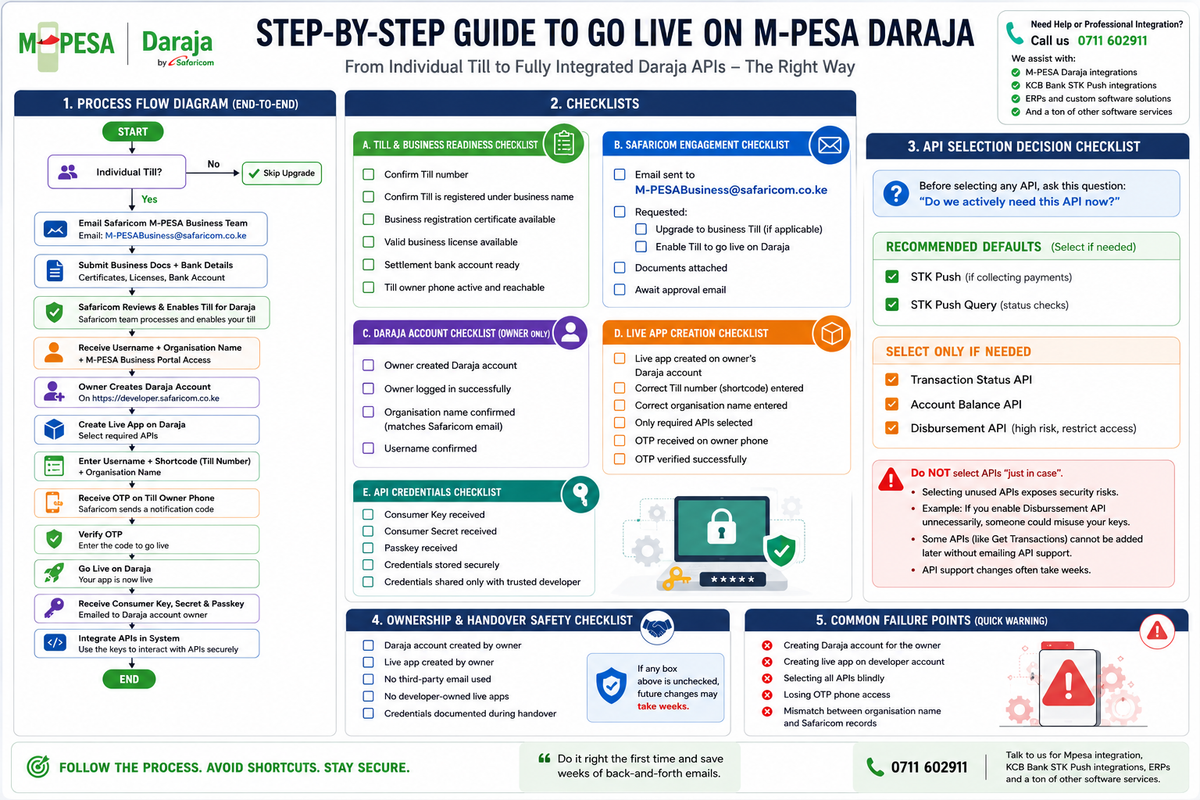
1. Process Flow Diagram (End-to-End)
[Start]
   |
   v
[Individual Till?] ---- No ----> [Skip Upgrade]
   |
  Yes
   |
   v
[Email Safaricom M-PESA Business Team]
   |
   v
[Submit Business Docs + Bank Details]
   |
   v
[Safaricom Reviews & Enables Till for Daraja]
   |
   v
[Receive Username + Organisation Name + Portal Access]
   |
   v
[Owner Creates Daraja Account]
   |
   v
[Create Live App on Daraja]
   |
   v
[Select Required APIs Only]
   |
   v
[Enter Username + Shortcode + Org Name]
   |
   v
[Receive OTP on Till Owner Phone]
   |
   v
[Verify OTP]
   |
   v
[Go Live on Daraja]
   |
   v
[Receive Consumer Key, Secret & Passkey]
   |
   v
[Integrate APIs in System]
   |
   v
[End]
This flow shows the single correct path. Any shortcut usually leads to emails, delays, and regret.
2. Client-Facing Checklist (Business Owner)
A. Till & Business Readiness Checklist
☐ Confirm Till number
☐ Confirm Till is registered under business name
☐ Business registration certificate available
☐ Valid business license available
☐ Settlement bank account ready
☐ Till owner phone active and reachable
B. Safaricom Engagement Checklist
☐ Email sent to M-PESABusiness@safaricom.co.ke
☐ Requested:
- ☐ Upgrade to business Till (if applicable)
- ☐ Enable Till to go live on Daraja
☐ Documents attached
☐ Await approval email
C. Daraja Account Checklist (Owner Only)
☐ Owner created Daraja account
☐ Owner logged in successfully
☐ Organisation name confirmed (matches Safaricom email)
☐ Username confirmed
D. Live App Creation Checklist
☐ Live app created on owner’s Daraja account
☐ Correct Till number (shortcode) entered
☐ Correct organisation name entered
☐ Only required APIs selected
☐ OTP received on owner phone
☐ OTP verified successfully
E. API Credentials Checklist
☐ Consumer Key received
☐ Consumer Secret received
☐ Passkey received
☐ Credentials stored securely
☐ Credentials shared only with trusted developer
3. API Selection Decision Checklist
Before selecting any API, ask this question:
“Do we actively need this API now?”
Recommended Defaults
☐ STK Push (if collecting payments)
☐ STK Push Query (status checks)
Select Only If Needed
☐ Transaction Status API
☐ Account Balance API
☐ Disbursement API (high risk, restrict access)
🚫 Do not select APIs “just in case”.
Adding later is painful. Removing misuse is worse.
4. Ownership & Handover Safety Checklist
☐ Daraja account created by owner
☐ Live app created by owner
☐ No third-party email used
☐ No developer-owned live apps
☐ Credentials documented during handover
If any box above is unchecked, future changes may take weeks.
5. Common Failure Points (Quick Warning Box)
⚠ Creating Daraja account for the owner
⚠ Creating live app on developer account
⚠ Selecting all APIs blindly
⚠ Losing OTP phone access
⚠ Mismatch between organisation name and Safaricom records