How to Start Windows 11 in Advanced Startup (Recovery Mode): Complete Illustrated Guide

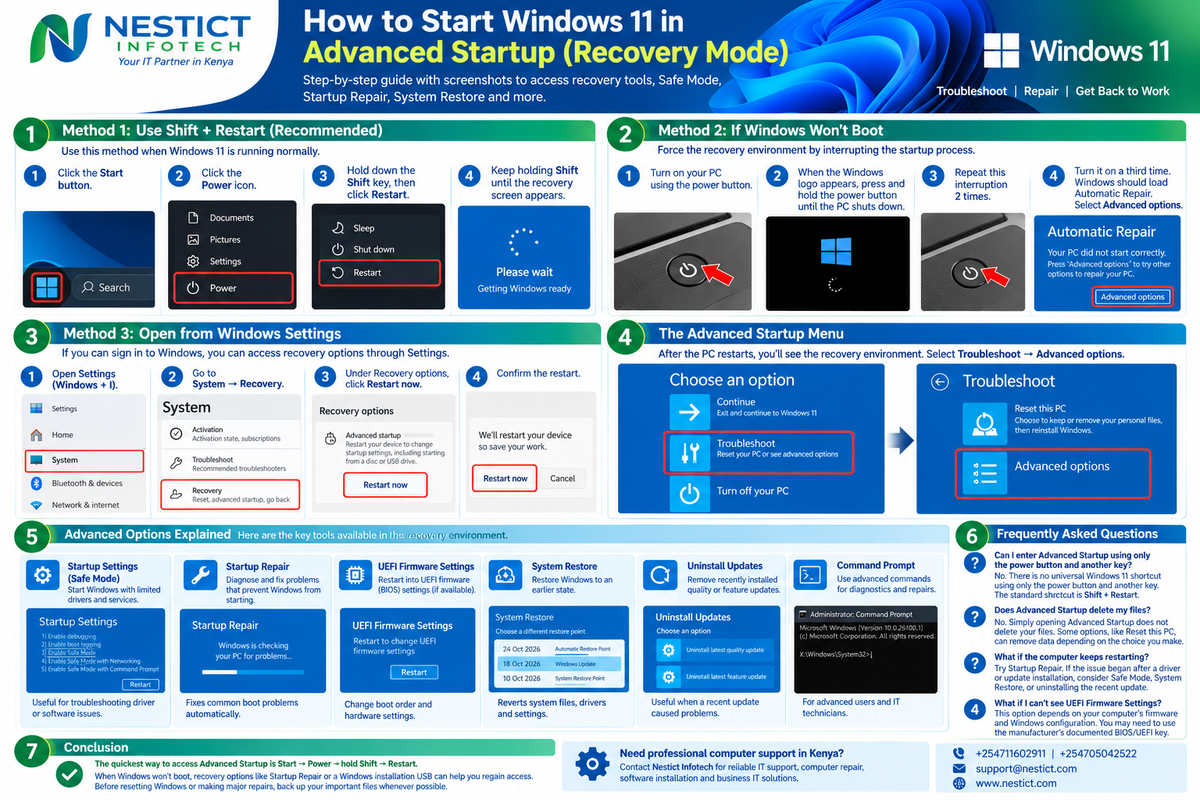
Windows 11 has a built-in recovery environment that helps you repair startup problems, enter Safe Mode, undo problematic updates, restore your system, and access BIOS/UEFI settings.
The quickest route is Shift + Restart. If Windows refuses to start, there are alternative recovery methods.
This guide covers all three methods, explains the recovery options, and includes illustrated reference guides for each major step.
What is Advanced Startup?
Advanced Startup, also called the Windows Recovery Environment (WinRE), is a set of recovery tools available outside the normal Windows desktop.

You may need it when:
- Windows 11 will not boot correctly.
- A driver or Windows update causes a startup problem.
- You need to start Windows in Safe Mode.
- You want to access BIOS/UEFI settings.
- You need to run Startup Repair or System Restore.
Method 1: Use Shift + Restart (recommended)
Best when Windows is working
This is the easiest and safest way to open Advanced Startup without interrupting the boot process.

Step 1: Open the Power menu
- Click the Start button on the taskbar.
- Click the Power icon.
- Locate Restart.
Step 2: Hold Shift and click Restart

- Press and hold the Shift key.
- While holding Shift, click Restart.
- Keep holding Shift while the computer restarts, until the recovery screen appears.
Important: Select Restart, not Shut down. You do not need to press the power button and Shift together.
Step 3: Select Troubleshoot

When the blue recovery screen appears:
- Select Troubleshoot.
- Select Advanced options.
You can now choose from the available Windows recovery tools.
Method 2: Start Recovery Mode when Windows 11 will not boot
Use this method when Windows repeatedly fails to start and you cannot access the desktop.

Step 1: Turn on the computer
Press the PC's power button and wait for the Windows logo or spinning loading indicator.
Step 2: Interrupt the startup process
If Windows is stuck during startup, press and hold the power button until the computer shuts down.

Step 3: Repeat the interruption
Repeat the shutdown interruption once more, then turn on the computer a third time and let it start.
Windows may enter Automatic Repair and display recovery options.
Step 4: Open Advanced options
Select Advanced options → Troubleshoot → Advanced options, where available.

Select Advanced options
Continue into the recovery environment to access repair tools.
Safety warning: Do not force the computer off while Windows is installing updates, updating firmware, or writing important data. If the recovery screen does not appear, use a Windows 11 installation USB and select Repair your computer.
Method 3: Open Advanced Startup from Windows Settings
This method is useful if you can sign in to Windows and prefer not to use the keyboard shortcut.

Step-by-step instructions
- Press Windows + I to open Settings.
- Select System.
- Scroll down and select Recovery.
- Find the Advanced startup section.
- Click Restart now and confirm if prompted.
Your PC will restart into the recovery environment.
Quick shortcut
Press Win + I → System → Recovery → Advanced startup → Restart now.
What to select on the recovery screen
Once Windows restarts, you will normally see the Choose an option screen.

The main choices include:
- Continue: Exit recovery and attempt to start Windows normally.
- Troubleshoot: Open repair and recovery tools.
- Turn off your PC: Shut down the computer.
- Use a device: Boot from a supported USB drive or another available boot device.
To access most repair tools, choose Troubleshoot → Advanced options.
Advanced options explained
![[KB2268] Start Windows in Safe Mode or Safe Mode with Networking](https://images.openai.com/static-rsc-4/au1BZWy6kwUkAd1fqOA-vclpUQ7i34Z8nfBh0JF9P01djLDNSiiPdCUpERUE-DuptXTO_c4QglsXkAahs9Qaveb2xiNjWWRN__7jaCtmmXxBVNPtFT2hhSq5jezYgCsSIvMaeb4Mi24LkXHRV9f9mKrQaDTsCT-ED9lmWLJs2IQ?purpose=inline)
1. Startup Settings and Safe Mode
Best for driver and application problems.
Go to Advanced options → Startup Settings → Restart. After restarting, select the Safe Mode option you need. On many systems, pressing 4 or F4 starts Safe Mode, while 5 or F5 starts Safe Mode with Networking.

2. Startup Repair
Best for Windows startup failures.
Select Startup Repair and follow the prompts. Windows will attempt to diagnose and repair certain problems that prevent it from starting.

3. UEFI Firmware Settings
Best for BIOS and boot configuration.
Select this option to restart into your computer's firmware settings, if supported. You can inspect boot order and other firmware settings.

4. System Restore
Best after a problematic system change.
Restore Windows system files and settings to an available restore point. This is not the same as resetting the PC, and availability depends on restore points having been created.

5. Uninstall Updates
If the problem started after a Windows update, try removing the latest quality update or feature update when the relevant option is available.

6. Command Prompt
Advanced users can run supported diagnostic and recovery commands. Be careful when changing boot configuration, disk partitions, or system files.
Troubleshooting: Which method should you use?
Your situation | Recommended action |
|---|---|
Windows opens normally | Shift + Restart |
You can sign in and use Settings | System → Recovery |
Windows is stuck during boot | Attempt Automatic Repair |
Windows crashes after a driver installation | Safe Mode or System Restore |
A recent Windows update caused problems | Uninstall Updates |
You need to enter BIOS/UEFI | UEFI Firmware Settings, if available |
Windows cannot access recovery tools | Use Windows installation media |
Frequently asked questions
Can I enter Advanced Startup using the power button plus a key?
There is no universal Windows 11 shortcut that uses only the power button and another key. The usual shortcut is Shift + Restart. Your PC manufacturer may provide a separate BIOS or boot-menu key.
Will Advanced Startup delete my files?
Opening the recovery menu does not itself delete files. However, actions such as resetting or reinstalling Windows can remove data depending on the choices you make.
What if Windows keeps restarting?
Try Startup Repair first. If the issue began after a driver installation or update, consider Safe Mode, System Restore, or uninstalling the recent update.
What if BitLocker asks for a recovery key?
Some recovery actions require your BitLocker recovery key. Retrieve it through the account or organization that manages your device before proceeding. Do not share the key publicly.
What if Advanced options does not appear?
Try opening recovery through Settings if Windows still works. Otherwise, boot from compatible Windows 11 installation media and choose Repair your computer.
Final checklist before repairing Windows
Save your work and back up important files where possibleDisconnect unnecessary USB devicesRecord any error messages displayed during startupTry Startup Repair before considering a resetKeep your BitLocker recovery key available if encryption is enabled
Note
The fastest way to start Windows 11 Advanced Startup is:
Start → Power → Hold Shift → Restart
Then choose Troubleshoot → Advanced options.
If Windows will not boot, attempt Automatic Repair or use Windows installation media to access recovery tools. Always protect important files before making major system changes.
For computer troubleshooting, Windows installation, and professional IT support in Kenya, contact Nestict Infotech.

Nestict Infotech
Your IT Partner in Kenya
support@nestict.com
+254 711 602 911 / +254 705 042 522