QuickBooks 2010 Invoices Showing $ Instead of KSh After Moving to Windows 11

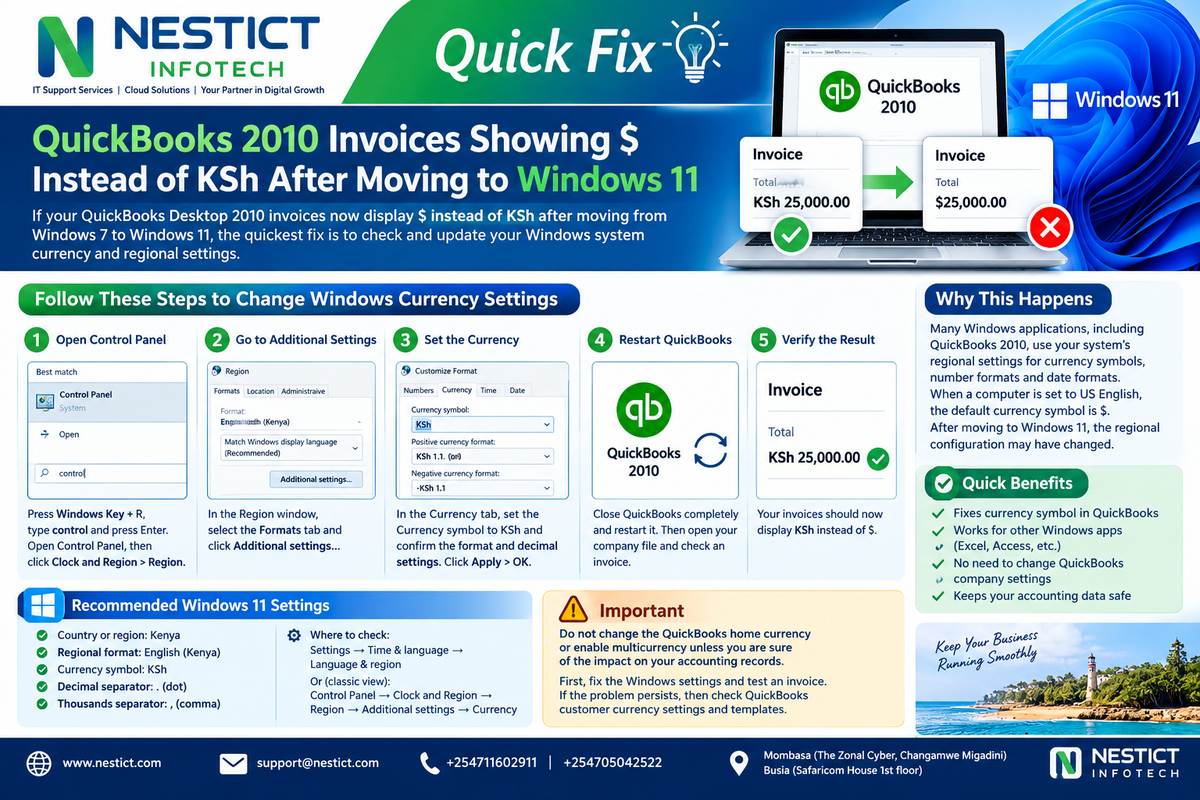
If you have migrated QuickBooks Desktop 2010 from an older Windows 7 computer to Windows 11, you may notice that invoices which previously displayed KSh or KES are suddenly showing the $ (US Dollar) symbol.
For example:
Before migration:
Invoice Total: KSh 25,000.00
After migration to Windows 11:
Invoice Total: $25,000.00
This can happen even when you are using the same QuickBooks company file and have not changed your accounting records.
In many cases, the quickest solution is to check the Windows system currency and regional settings before making changes inside QuickBooks.
The Quickest Fix
If the QuickBooks company file previously worked correctly on Windows 7, start by checking the Windows currency configuration on the new Windows 11 computer.
Windows 11 path
Go to:
Control Panel → Clock and Region → Region → Additional settings → Currency
Check the Currency symbol.
If it is set to:
$change it to the appropriate Kenyan currency format, such as:
KSh
Then click:
Apply → OK
Close and restart QuickBooks 2010 and test an invoice again.
Why Does This Happen?
When an application is moved from one Windows computer to another, the application does not necessarily inherit the same Windows regional configuration.
Your old Windows 7 computer may have been configured for Kenyan regional settings, while the new Windows 11 computer may have been installed with a default configuration such as:
English (United States)
The US regional configuration commonly uses:
$
as its currency symbol.
Older Windows desktop applications can rely on operating-system regional settings when formatting numbers, dates and currencies.
This can affect not only QuickBooks, but also applications such as:
- Microsoft Excel
- Microsoft Access
- Microsoft Word
- Older accounting applications
- Database applications
- Custom Windows business applications
Therefore, if several applications suddenly display $ instead of the expected Kenyan currency format after moving to a new computer, Windows regional settings should be one of the first things to check.
Step-by-Step: Change Windows Currency to KSh
Step 1: Open Control Panel
Press:
Windows + R
Type:
control
Press Enter.
Alternatively, search for Control Panel from the Windows Start menu.
Step 2: Open Clock and Region
Select:
Clock and Region
Then select:
Region
Step 3: Open Additional Settings
In the Region window:
- Select the Formats tab.
- Check the current regional format.
- Click Additional settings...
Step 4: Select the Currency Tab
Select:
Currency
Locate:
Currency symbol
If it shows:
$
change it to:
KSh
Also review the number formatting settings.
A typical Kenyan financial display might look like:
KSh 25,000.00
rather than:
$25,000.00
Click:
Apply → OK
Step 5: Restart QuickBooks
Completely close QuickBooks Desktop 2010.
Start QuickBooks again and open the company file.
Open an existing invoice and check the currency.
Then use Print Preview to confirm that the invoice also displays the expected currency.
Check Windows 11 Regional Settings
It is also useful to check:
Settings → Time & language → Language & region
Review:
Country or region
Set appropriately for:
Kenya
Regional format
Use an appropriate Kenyan format where available.
Windows also provides the traditional Control Panel regional settings, which are particularly useful when working with older desktop software.
Why Check Windows Before QuickBooks?
A common troubleshooting mistake is to immediately modify the QuickBooks company configuration when the problem may only be related to the new computer's regional settings.
For example, if:
- The same
.QBWcompany file was used - The old Windows 7 computer displayed KSh correctly
- The new Windows 11 computer displays
$ - The actual invoice amounts have not changed
- The problem appeared after migration
then the Windows environment should be checked first.
Changing accounting or Multicurrency settings unnecessarily can introduce complications into an otherwise healthy company file.
QuickBooks Home Currency vs Windows Currency
These are not necessarily the same thing.
Windows currency settings
Control how many Windows applications format and display currency and numbers.
QuickBooks currency configuration
Controls the accounting currency used by the QuickBooks company and, where applicable, customer/vendor currencies and Multicurrency transactions.
Therefore, seeing $ on an invoice does not automatically mean that the QuickBooks company has been converted from KES to USD.
First determine whether the problem is simply a display/formatting issue.
Do Not Immediately Change the QuickBooks Home Currency
If you have a historical accounting file containing years of transactions, exercise caution before changing:
- Home currency
- Multicurrency settings
- Customer currencies
- Vendor currencies
- Exchange rates
A display problem should not automatically be treated as an accounting-data problem.
Back up the company file before making significant QuickBooks configuration changes.
How to Determine Whether It Is Only a Display Problem
Open an existing invoice that was created before the migration.
Check the invoice on screen.
Then check:
Print Preview
Finally, compare it with an invoice from the old computer or a previously generated PDF.
Scenario 1: Amount is correct, symbol is wrong
Example:
$25,000.00when the business normally uses:
KSh 25,000.00Start with Windows regional currency settings.
Scenario 2: QuickBooks customer is actually assigned USD
The problem may involve the customer's currency configuration.
Scenario 3: Multicurrency is enabled
The company may be using multiple currencies and the affected customer or transaction may have a USD currency assignment.
Scenario 4: Only the printed invoice is wrong
The invoice template/layout may need to be investigated.
Why Excel and Access Can Also Be Affected
This issue is particularly important in business environments because Windows regional settings can influence more than accounting software.
For example, a company may have:
QuickBooks → KSh
Excel → $
Access → $
after moving to a new computer.
Rather than correcting every application individually, check the Windows regional configuration first.
This provides a common baseline for applications that rely on Windows regional formatting.
Windows 7 → Windows 11 Migration Checklist
When moving an old business computer to Windows 11, do not only migrate applications and files.
Also verify the operating-system environment.
Regional settings
- Country/region
- Regional format
- Currency symbol
- Decimal separator
- Thousands separator
- Date format
- Time format
QuickBooks
- Company file opens correctly
- Customer records are intact
- Vendor records are intact
- Chart of Accounts is intact
- Previous invoices are intact
- Invoice templates work
- Currency displays correctly
- Reports generate correctly
- Bank accounts are present
- Transactions are accessible
Microsoft Office
Test:
- Excel currency formatting
- Excel formulas
- Access currency fields
- Word documents
- Printing and PDF generation
Hardware
Also test:
- Printers
- Network printers
- PDF printers
- Scanners
- External drives
- Network shares
Quick Reference
| Problem | First thing to check |
|---|---|
QuickBooks shows $ instead of KSh | Windows currency settings |
Excel displays $ instead of KSh | Windows regional/currency settings |
Access currency fields show $ | Windows regional settings and Access field formatting |
| Only one QuickBooks customer shows USD | Customer currency settings |
| Only Multicurrency transactions show USD | QuickBooks Multicurrency configuration |
| Screen is correct but printed invoice is wrong | Invoice template |
| Amount itself has changed | Investigate QuickBooks transaction currency |
The Recommended Troubleshooting Order
For a QuickBooks 2010 installation migrated from Windows 7 to Windows 11, use this order:
1. Check Windows regional settings
↓
2. Check Windows currency symbol
↓
3. Restart QuickBooks
↓
4. Test an existing invoice
↓
5. Check Print Preview
↓
6. Check QuickBooks customer currency
↓
7. Check Multicurrency configuration if applicable
↓
8. Investigate the invoice template
This approach starts with the simplest and least disruptive possibility.
Final Takeaway
If your QuickBooks Desktop 2010 invoices changed from KSh to $ after moving from Windows 7 to Windows 11, do not immediately assume that your QuickBooks accounting data has been converted to US Dollars.
Start with the Windows system currency and regional settings.
Go to:
Control Panel → Clock and Region → Region → Additional settings → Currency
Check the Currency symbol and configure the computer appropriately for the Kenyan environment.
Restart QuickBooks and test the invoice.
For legacy business applications, the Windows regional configuration is often an overlooked piece of the puzzle. Fixing the system-level settings can also correct currency formatting in other applications such as Excel and Access, saving you from chasing the same problem application by application.
Important: Always maintain a verified backup of your QuickBooks company file before making significant accounting configuration changes.
About Nestict Infotech
Nestict Infotech provides IT support services, cloud solutions, business software deployment, hosting, system administration and technical support for businesses and organizations.
We support businesses with practical solutions for legacy and modern IT environments, including Windows, QuickBooks, cloud platforms, servers, websites, email and business applications.
Nestict Infotech
IT Support Services | Cloud Solutions | Business Technology
🌐 www.nestict.com
✉️ support@nestict.com
📞 +254 711 602 911 | +254 705 042 522
Mombasa: The Zonal Cyber, Changamwe Migadini
Busia: Safaricom House, 1st Floor