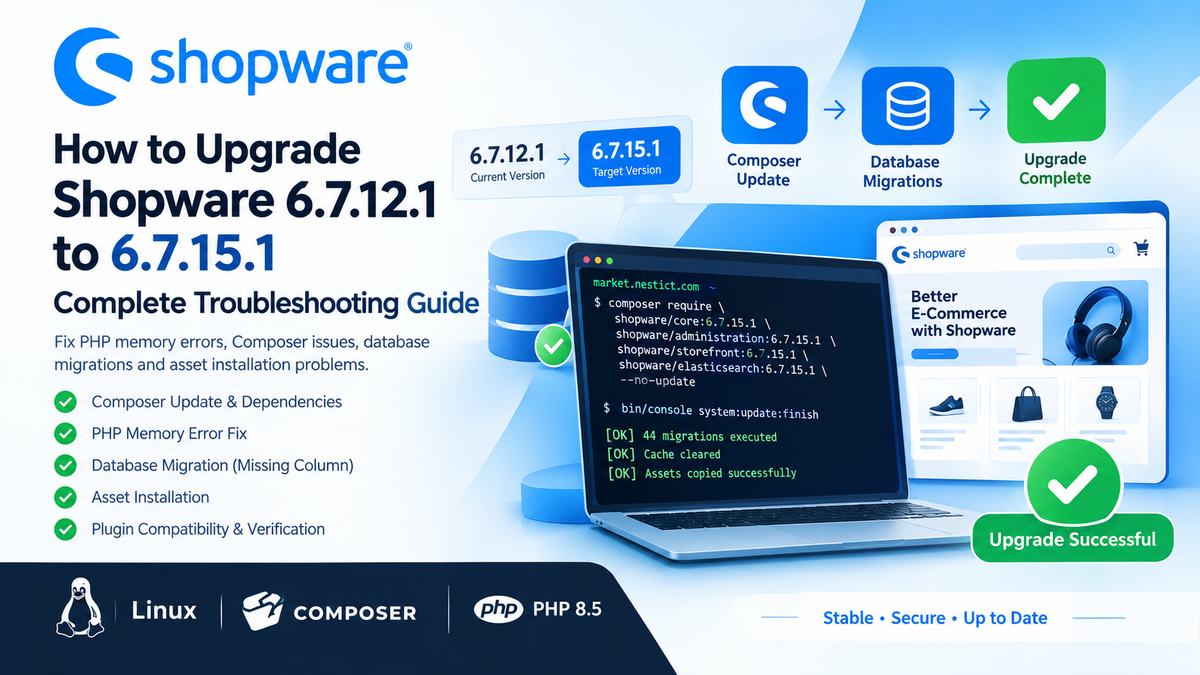
How to Upgrade Shopware 6.7.12.1 to 6.7.15.1: Complete Troubleshooting Guide

Introduction
Shopware is a powerful e-commerce platform built on Symfony and modern PHP technologies. Like other enterprise-grade applications, it requires careful upgrade planning, especially when updating the core application, administration interface, storefront and third-party extensions.
A Shopware upgrade is not simply a matter of replacing application files. It involves several interconnected processes:
- Updating Composer dependencies.
- Downloading and installing compatible packages.
- Regenerating Composer autoload files.
- Installing application and plugin assets.
- Executing database migrations.
- Clearing application caches.
- Verifying plugin and theme compatibility.
During a real-world upgrade from Shopware 6.7.12.1 to 6.7.15.1, several problems appeared even though Composer successfully resolved and installed the new packages.
This guide documents the actual problems encountered and the commands used to resolve them.
The procedures are particularly useful for Shopware installations running on Linux hosting environments, including Webuzo and other VPS or dedicated server platforms.
1. Understanding the upgrade environment
The upgrade covered the following environment:
| Component | Configuration |
|---|---|
| E-commerce platform | Shopware |
| Previous version | 6.7.12.1 |
| Target version | 6.7.15.1 |
| PHP version | 8.5.12 |
| Composer | 2.9.2 |
| Operating environment | Linux VPS |
| Hosting panel | Webuzo |
| Installation directory | /home/nestict/market.nestict.com |
| PHP executable | /usr/local/apps/php85/bin/php |
The main Shopware packages being upgraded were:
shopware/coreshopware/administrationshopware/storefrontshopware/elasticsearch
Third-party plugins and applications were also present in the installation.
Important: Always check the PHP version and requirements of your particular Shopware release and extensions before upgrading. A PHP version supported by Shopware Core does not automatically guarantee compatibility with every installed plugin.
2. Prepare the Shopware installation
Before changing Composer dependencies, navigate to the Shopware installation directory.
cd /home/nestict/market.nestict.comCheck the PHP version:
/usr/local/apps/php85/bin/php -vCheck the PHP configuration:
/usr/local/apps/php85/bin/php -i | grep -E "memory_limit|Loaded Configuration"Check Composer:
composer --versionCheck the current Shopware version:
/usr/local/apps/php85/bin/php bin/console --versionThese checks establish the environment before beginning the upgrade.
3. Back up Composer files and custom plugins
A backup is essential before changing dependencies.
Create a backup directory:
mkdir -p /home/nestict/backups/shopware/pre-upgradeBack up the Composer configuration and lock file:
cd /home/nestict/market.nestict.com

cp composer.json composer.lock \
/home/nestict/backups/shopware/pre-upgrade/
Back up custom plugins and static plugins:
tar -czf /home/nestict/backups/shopware/pre-upgrade/custom-plugins.tar.gz \
custom/plugins custom/static-plugins
Check the resulting files:
ls -lh /home/nestict/backups/shopware/pre-upgrade/Important backup consideration
The backup must ideally be created before modifying composer.json.
In this particular upgrade, the Composer configuration had already been changed to the target version before the backup was made. Consequently, the backed-up composer.json was not the original configuration.
Also, the backup above does not include the complete Shopware installation or database.
For a production installation, maintain separate backups of:
- The complete Shopware application.
- The database.
- Custom plugins and themes.
composer.jsonandcomposer.lock.- Uploaded media and other persistent files.
A database backup is particularly important before executing Shopware migrations.
4. Update Shopware Composer dependencies
The next step is to change the required Shopware package versions.
The following command updates the target versions in composer.json without immediately installing the packages:
composer require \
shopware/core:6.7.15.1 \
shopware/administration:6.7.15.1 \
shopware/storefront:6.7.15.1 \
shopware/elasticsearch:6.7.15.1 \
--no-update
The --no-update option prevents Composer from immediately resolving and installing the new dependencies.
This allows the dependency update to be reviewed before executing it.
Perform a dry run
Run:
composer update \
shopware/core \
shopware/administration \
shopware/storefront \
shopware/elasticsearch \
--with-all-dependencies \
--dry-run
The --dry-run option allows Composer to resolve dependencies and show the proposed package operations without actually installing them.
The --with-all-dependencies option allows Composer to update related dependencies required by the selected packages.
Review the proposed operations carefully.
Look for:
- Dependency conflicts.
- Packages that will be removed.
- Packages that will be upgraded.
- Plugin dependency incompatibilities.
- Security advisory warnings.
In this upgrade, Composer successfully resolved the dependencies and proposed:
- 11 package installations.
- 96 package updates.
- 1 package removal.
There were no dependency solver conflicts.
Do not assume that a successful dry run guarantees that every plugin will work after the upgrade. Dependency resolution and application compatibility are different checks.
5. Execute the Composer update
Once the dry run is satisfactory, execute the actual update:
composer update \
shopware/core \
shopware/administration \
shopware/storefront \
shopware/elasticsearch \
--with-all-dependencies \
--no-interaction
Composer downloads and installs the new packages, updates the lock file and regenerates the autoload files.
In this upgrade, the Shopware packages were successfully installed at version 6.7.15.1.
However, the process did not finish successfully.
The following error appeared:
Script assets:install returned with error code 255

Fatal error: Allowed memory size of 67108864 bytes exhausted
(tried to allocate 2097152 bytes)

in vendor/composer/ClassLoader.php on line 576

Script @auto-scripts was called via post-update-cmd
This was the first major problem encountered.
6. Fix Composer assets installation PHP memory errors
Understanding the problem
The error:
Allowed memory size of 67108864 bytes exhaustedmeans PHP attempted to allocate more memory than its configured limit.
The value 67108864 represents 64 MB.
Shopware's asset installation process loads application bundles, plugins and associated resources. A 64 MB PHP memory limit was insufficient for the installation.
An important distinction is that Composer had already downloaded and installed the updated packages and written the new lock file.
The failure occurred during the post-update asset installation script.
Therefore, immediately repeating the entire Composer update was unnecessary.
Check the current PHP memory limit
Run:
/usr/local/apps/php85/bin/php -i | grep memory_limitRun the asset installation with increased memory
Instead of changing the server-wide PHP configuration immediately, execute the command with a temporary memory override:
cd /home/nestict/market.nestict.com

/usr/local/apps/php85/bin/php \
-d memory_limit=512M \
bin/console assets:install
The -d memory_limit=512M parameter overrides PHP's memory limit for this command only.
The asset installation should display the bundles and applications being processed.
A successful execution ends with:
[OK] Successfully copied all bundle filesIn this upgrade, the command successfully copied the assets for Shopware Core, Administration, Storefront, Elasticsearch and the installed extensions.
Troubleshooting tip: If a Composer operation fails during a post-update script, inspect the exact failing script before repeating the package update. A successfully written lock file and installed vendor directory may mean that only the post-update operation needs attention.
7. Validate Composer dependencies and security
After successfully installing the assets, validate the Composer configuration:
composer validateComposer may report warnings such as:
The property description is requiredIt may also report exact version constraints:
require.shopware/core:
exact version constraints should be avoided
These messages do not necessarily indicate that the Shopware installation is broken.
The missing description property is a package publishing metadata warning. Exact version constraints are also valid in many application projects, although they produce Composer recommendations.
Next, run a security audit:
composer auditIn the documented upgrade, the result was:
No security vulnerability advisories found.This is a positive result for the installed Composer dependencies at the time of the audit.
It does not replace ongoing security monitoring or a review of third-party extensions.
Verify individual Shopware package versions
An attempt to run several packages in one composer show command produced:
Too many arguments to "show" commandComposer's show command expects one package name at a time.
Use a loop instead:
for p in shopware/core shopware/administration shopware/storefront shopware/elasticsearch
do
    composer show "$p" | grep -E '^(name|versions) :'
done
Alternatively, execute each command separately:
composer show shopware/core
composer show shopware/administration
composer show shopware/storefront
composer show shopware/elasticsearch
Verify that all four packages are on the intended version.
8. Fix the Shopware database schema mismatch
After the Composer update and successful asset installation, the storefront was tested.
Instead of displaying the normal storefront, the application returned an HTTP 500 error containing:
{
  "errors": [
    {
      "code": "1054",
      "status": "500",
      "title": "Internal Server Error",
      "detail": "An exception occurred while executing a query: SQLSTATE[42S22]: Column not found: 1054 Unknown column 'sales_channel.maintenance_ip_allowlist' in 'SELECT'"
    }
  ]
}
This was the second major problem.
Understanding SQLSTATE[42S22]
The important part of the error is:
Unknown column 'sales_channel.maintenance_ip_allowlist'Shopware's updated application code expected a database column named:
maintenance_ip_allowlistin the:
sales_channeltable.
However, the column was missing from the database.
This indicated that the application packages had been upgraded, but the database schema had not yet been brought up to date.
This is a common type of problem when an application upgrade requires database migrations.
Why you should not manually add the missing column
It may be tempting to execute an SQL statement such as:
ALTER TABLE sales_channel
ADD COLUMN maintenance_ip_allowlist ...;
However, manually creating a missing column is not the recommended first response.
A Shopware migration may involve additional operations, indexes, constraints, data changes or related schema updates.
The safer approach is to execute the migrations supplied by the installed Shopware version.
9. Execute Shopware database migrations
Shopware provides an update completion command that runs the required post-update operations.
The command used in this upgrade was:
cd /home/nestict/market.nestict.com

/usr/local/apps/php85/bin/php \
-d memory_limit=512M \
bin/console system:update:finish
The command performed several operations.
The output included:
Run Post Update

Get collection for identifier: "core"
migrate Migrations

44/44 [==============================] 100%

Action     Number of migrations
Migrated   44 out of 44

all migrations for identifier: "core" executed
This confirmed that 44 core migrations had been executed.
Shopware then cleared its cache:
cleared the shopware cacheThe migration process ran another check and reported:
Migrated 0 out of 0This indicated that no additional migrations remained in that subsequent check.
Finally, Shopware copied the application assets again.
The process completed with:
[OK] Successfully copied all bundle filesWhy this command matters
The Composer update changes the application packages. The database migration process brings the database structure and data into line with the updated application.
Both operations are essential for a successful upgrade.
Always create a database backup before executing migrations, particularly on a production e-commerce store.
10. Clear Shopware cache
Although the update completion command already cleared the Shopware cache, a manual cache clear can be performed after successful migrations if necessary.
/usr/local/apps/php85/bin/php \
-d memory_limit=512M \
bin/console cache:clear
If the command completes successfully, proceed to test the storefront and administration interface.
11. Verify the upgraded Shopware storefront
Once the package update, asset installation and database migrations have completed, test the actual application.
Test the storefront
Open:
https://market.nestict.comCheck:
- Homepage loading.
- Product listing pages.
- Product detail pages.
- Shopping cart.
- Customer login and registration.
- Search functionality.
- Checkout.
- Payment methods.
- Shipping methods.
Test the administration interface
Open:
https://market.nestict.com/adminVerify that administrators can log in and access the dashboard.
Check product management, orders, customers, sales channels and other critical administration features.
Check the HTTP response
You can also test the storefront from the terminal:
curl -sS -o /dev/null \
-w "HTTP Status: %{http_code}\n" \
https://market.nestict.com
An HTTP 200 response indicates a successful HTTP request. A redirect may return 301, 302 or another valid response depending on your configuration.
A successful HTTP response alone does not guarantee that checkout, payments or all application functions are working.
12. Inspect Shopware logs when errors persist
If the storefront or administration still reports an error, inspect the application logs.
Navigate to the installation directory:
cd /home/nestict/market.nestict.comList the most recent log files:
ls -lt var/log/ | headInspect the production log:
tail -n 80 var/log/prod-*.logFor a continuously updating log:
tail -f var/log/prod-*.logUse the logs to identify:
- SQL errors.
- Missing database columns.
- Plugin exceptions.
- PHP compatibility errors.
- Missing files.
- Permission problems.
- Cache or container compilation errors.
Avoid blindly changing database tables or disabling plugins without first identifying the actual cause.
13. Check third-party plugin compatibility
Shopware installations often contain extensions from different vendors.
A successful Shopware Core upgrade does not automatically mean that every extension is compatible with the new release.
List installed plugins:
/usr/local/apps/php85/bin/php \
-d memory_limit=512M \
bin/console plugin:list
Review the output for plugins that are:
- Installed and active.
- Installed but inactive.
- In need of an update.
- Reporting compatibility or loading problems.
Pay particular attention to payment extensions, shipping integrations, storefront themes, checkout customizations and plugins that modify sales-channel functionality.
Do not update every plugin simultaneously without checking the vendor's compatibility information.
A safer process is to:
- Identify plugins that support the target Shopware release.
- Back up the database and custom plugin files.
- Update compatible extensions in controlled batches.
- Clear the cache.
- Test the affected functionality.
- Review logs after each batch.
14. Common Shopware upgrade errors and solutions
| Error | Likely cause | Recommended action |
|---|---|---|
| Allowed memory size exhausted | Insufficient PHP CLI memory | Run the affected command with -d memory_limit=512M |
assets:install returned error 255 | Post-update asset installation failed | Run bin/console assets:install with increased memory |
| SQLSTATE[42S22] | Missing database column | Execute the appropriate Shopware database migrations |
| HTTP 500 after Composer update | Incomplete post-update operations, database mismatch or application exception | Inspect logs and verify migrations |
| Composer dependency conflict | Incompatible package requirements | Review the dependency solver output and plugin requirements |
| Composer audit reports advisories | Vulnerable dependency versions | Review affected packages and available fixes |
| Plugin fails after upgrade | Plugin incompatibility or outdated extension | Check vendor compatibility and update carefully |
| Administration fails to load | Asset, cache, plugin or JavaScript problem | Inspect browser console and Shopware logs |
15. Recommended Shopware upgrade checklist
Use this checklist before and after every production upgrade.
Before upgrading
- Confirm the current Shopware version.
- Check PHP CLI and web PHP versions.
- Check Composer version.
- Review Shopware release requirements.
- Check third-party plugin compatibility.
- Back up the database.
- Back up the complete application.
- Back up custom plugins and themes.
- Back up
composer.jsonandcomposer.lock. - Run Composer dependency checks.
- Perform a Composer dry run.
During the upgrade
- Update the Shopware package requirements.
- Run Composer update with dependencies.
- Confirm that the lock file is updated.
- Resolve any PHP memory errors.
- Complete asset installation.
- Execute Shopware database migrations.
- Clear the application cache.
After the upgrade
- Verify Shopware package versions.
- Run
composer audit. - Inspect plugin status.
- Test the storefront.
- Test the administration interface.
- Test product pages and search.
- Test cart and checkout.
- Test payment and shipping integrations.
- Inspect production logs.
- Confirm that scheduled tasks and background processes are functioning.
16. Essential commands reference
For quick reference, these are the commands used during the upgrade.
Check PHP version:
/usr/local/apps/php85/bin/php -vCheck PHP memory limit:
/usr/local/apps/php85/bin/php -i | grep memory_limitCheck Shopware version:
/usr/local/apps/php85/bin/php bin/console --versionUpdate Shopware package requirements:
composer require \
shopware/core:6.7.15.1 \
shopware/administration:6.7.15.1 \
shopware/storefront:6.7.15.1 \
shopware/elasticsearch:6.7.15.1 \
--no-update
Perform dependency dry run:
composer update \
shopware/core \
shopware/administration \
shopware/storefront \
shopware/elasticsearch \
--with-all-dependencies \
--dry-run
Execute Composer update:
composer update \
shopware/core \
shopware/administration \
shopware/storefront \
shopware/elasticsearch \
--with-all-dependencies \
--no-interaction
Install assets with increased memory:
/usr/local/apps/php85/bin/php \
-d memory_limit=512M \
bin/console assets:install
Run Shopware post-update operations and migrations:
/usr/local/apps/php85/bin/php \
-d memory_limit=512M \
bin/console system:update:finish
Clear cache:
/usr/local/apps/php85/bin/php \
-d memory_limit=512M \
bin/console cache:clear
List plugins:
/usr/local/apps/php85/bin/php \
-d memory_limit=512M \
bin/console plugin:list
Validate Composer:
composer validateRun security audit:
composer audit==============================
Upgrading Shopware requires more than installing new Composer packages. The application, database, assets, plugins and cache must all be brought into a consistent state.
In this real-world Shopware 6.7.12.1 to 6.7.15.1 upgrade, two major problems interrupted the process:
- A PHP CLI memory limit of 64 MB prevented the automatic asset installation script from completing.
- The database was missing the
sales_channel.maintenance_ip_allowlistcolumn expected by the updated application.
Both problems were resolved without manually modifying the database schema.
Increasing PHP memory to 512 MB allowed the asset installation to complete. Running system:update:finish executed all 44 pending core migrations, cleared the cache and copied the assets successfully.
The storefront subsequently returned to normal operation.
The key lesson is simple: a successful Composer update is not the same as a completed Shopware upgrade. Always complete the database migrations, asset installation and application verification before considering the upgrade finished.
For production stores, use a tested backup and recovery plan, and perform upgrades during a controlled maintenance window.
Technical support: If your Shopware installation is experiencing Composer dependency conflicts, PHP memory errors, database migration failures or plugin compatibility issues, engage an experienced Shopware administrator before attempting destructive changes.