Complete Guide: How to Set Up Google Meet on Windows 11 (2026)

Setting up Google Meet on Windows 11 is straightforward, but doing it correctly ensures stable calls, clear audio, and a professional experience—especially for business, online classes, or client meetings.
This guide walks you through installation (optional), configuration, and optimization for Windows 11 systems.

1. System Requirements
Before setup, confirm your system meets these baseline requirements:
- OS: Windows 11 (updated)
- Browser: Google Chrome or Microsoft Edge
- Hardware: Webcam + Microphone
- Internet: Minimum 2 Mbps (recommended 5+ Mbps for HD)

2. Access Google Meet (Primary Method)
Step-by-Step:
- Open Chrome or Edge
- Navigate to: https://meet.google.com
- Sign in with your Google account
- Choose:
- New Meeting (create session)
- Join with a code (enter meeting ID)

3. Install Google Meet as a Desktop App (PWA)
For frequent users, installing Meet as an app improves accessibility.
Install via Chrome:
- Open Meet in Chrome
- Click Install icon (top-right in address bar)
- Click Install
Install via Edge:
- Open Meet in Edge
- Click ⋯ Menu → Apps → Install this site as an app
✔ After installation:

4. Configure Camera & Microphone (Critical Step)
Enable permissions in Windows 11:
- Go to Settings → Privacy & Security
- Click:
- Camera → Enable access
- Microphone → Enable access
Configure inside Google Meet:
- Click Settings (⚙️ icon)
- Select:
- Correct Camera
- Correct Microphone
- Proper Speaker output

5. Start or Join a Meeting
Start a Meeting:
- Click New Meeting
- Choose:
- Start instantly
- Schedule via Google Calendar
- Copy link and share
Join a Meeting:
- Enter Meeting Code
- Allow camera/mic access
- Click Join Now

6. Key Features You Should Use
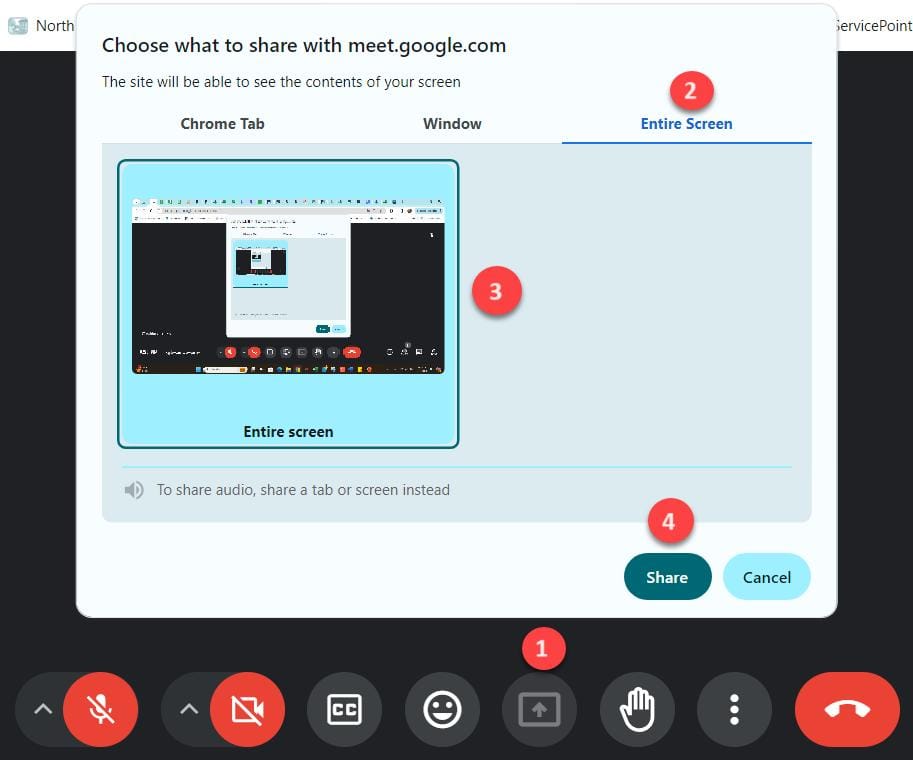
- Screen Sharing → Present slides or demos
- Live Captions → Automatic subtitles
- Chat Panel → Share links/messages
- Background Effects → Blur or replace background
7. Performance Optimization (For Business Use)
To ensure stable meetings:
- Use wired internet (LAN) instead of Wi-Fi
- Close unused apps (especially browsers & Zoom/Teams)
- Use headphones to avoid echo
- Keep browser updated
8. Troubleshooting Common Issues
❌ Camera Not Working
- Check Windows Privacy settings
- Ensure no other app is using the camera
❌ Microphone Not Detected
- Re-select mic in Meet settings
- Test in Windows Sound settings
❌ No Sound Output
- Verify correct speaker device
- Check system volume + Meet audio settings
❌ Lag / Freezing
- Reduce video quality in Meet settings
- Check bandwidth usage
- Restart browser
9. Advanced Setup (For Organizations)
For IT environments like your NESTICT INFOTECH deployments, consider:
- Managed Chrome policies for Meet
- Dedicated meeting rooms with USB cameras
- Integration with Google Workspace
- Network QoS prioritization for video traffic
Setting up Google Meet on Windows 11 is quick, but proper configuration ensures professional-grade meetings. For most users, the browser method is sufficient, while the PWA app offers convenience for daily usage.