A Complete Guide to Installing and Running Applications on Windows

Why C:\ Matters, When It Doesn’t, and How to Do It Right
Windows is not a free-range filesystem. It is a carefully zoned city, and stability depends on respecting that map. This guide explains where applications should live, why installing outside C:\ can be risky, and how to design a clean, professional Windows layout for desktops and servers alike.
1. Understanding the Role of C:\
During installation, Windows designates *C:* as the system volume. This is not just convention; it is enforced at multiple layers.
What Lives on C:\
- Operating system files
- Boot and recovery components
- Core libraries and runtimes
- Security and update mechanisms
- Default application binaries
Key directories:
C:\WindowsC:\Program FilesC:\Program Files (x86)C:\Users
These locations are deeply integrated into Windows APIs, installers, and updates.
2. Why Applications Default to C:\Program Files
2.1 Security and Permissions
C:\Program Files is write-protected.
- Standard users cannot modify binaries
- Malware cannot easily replace executables
- Admin access is explicitly required
Installing system-aware software elsewhere often weakens this security model.
2.2 Predictable Application Management
Windows Installer (MSI) expects applications to:
- Register in the system registry
- Live in known locations
- Be patchable and repairable
Custom locations often break:
- Automatic updates
- Repair installs
- Clean uninstall routines
2.3 64-bit and 32-bit Separation
Windows separates binaries to avoid conflicts:
| Folder | Purpose |
|---|---|
Program Files | 64-bit apps |
Program Files (x86) | 32-bit apps |
This is critical for DLL loading and system stability.
3. Why Installing or Running Apps Outside C:\ Can Be a Problem
3.1 Broken OS Assumptions
Some applications:
- Hard-code system paths
- Expect shared libraries in specific locations
- Depend on OS-level discovery mechanisms
When these assumptions fail, apps become unstable.
3.2 Service and Startup Failures
Applications installed on:
- Secondary disks
- External drives
- Network locations
may fail because:
- The disk mounts late during boot
- Permissions differ
- The path is unavailable at startup
Services should never depend on non-system volumes.
3.3 Update and Patch Blind Spots
Windows Update and enterprise patching tools:
- Scan known system paths
- Verify protected binaries
Applications outside C:\ may:
- Miss security patches
- Break after OS upgrades
- Fail integrity checks
3.4 Backup and Recovery Issues
System Restore and recovery tools assume:
- Registry + binaries move together
- Apps live in standard paths
Non-standard layouts result in:
- Partial restores
- Broken applications
- Forced reinstalls after recovery
4. Performance Myths
Installing outside C:\ does not automatically improve performance.
Problems arise when:
- OS is on SSD
- App binaries are on HDD
- Temp files and paging remain on C:\
This creates disk contention and latency.
Rule: Keep binaries close to the OS. Move data, not executables.
5. When Installing Outside C:\ Is Acceptable
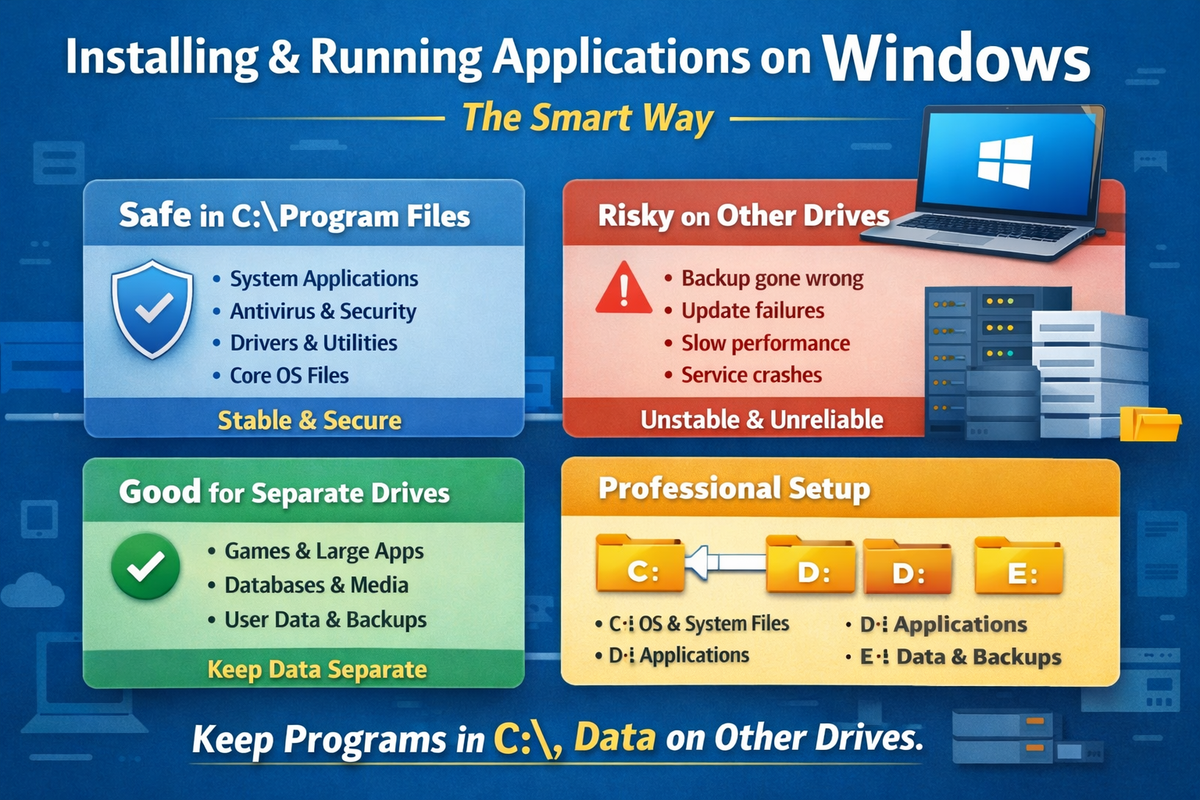
Installing outside C:\ is safe when the application is:
- Self-contained
- Explicitly designed for custom paths
- Not a system service
- Not security-sensitive
Good Candidates
- Games
- Media editing tools
- Development environments
- Large IDEs
- Databases (data files only)
Recommended structure:
D:\Apps
D:\Games
E:\Data
E:\Backups
6. What Should Never Leave C:\
Avoid moving or installing these elsewhere:
- Antivirus and endpoint security
- Device drivers
- System utilities
- Backup agents
- Monitoring agents
- Anything that installs Windows services or kernel components
These belong exactly where Windows expects them.
7. Best-Practice Disk Layout (Professional Setup)
Desktop / Laptop
- C:\ (SSD)
OS + Program Files - D:\ (SSD or HDD)
Applications (optional) - *E:*
User data, media, backups
Server
- C:\ (SSD)
OS + system apps - *D:*
Application binaries (if supported) - *E:\ / F:*
Databases, logs, uploads, backups
8. What You Should Never Do
❌ Change Program Files location via registry hacks
❌ Run applications from user-writable folders
❌ Mix binaries and data in the same directory
❌ Install system software on removable drives
These shortcuts always surface later as outages.
9. Core Principle to Remember
Windows is path-sensitive.
Stability comes from predictability.
Let:
- *C:* be the control room
- Other drives be warehouses
When everything knows its place, Windows runs quietly. And quiet systems are healthy systems.