How to Set Up Nextcloud Background Cron Jobs on an Easypanel-Powered Server

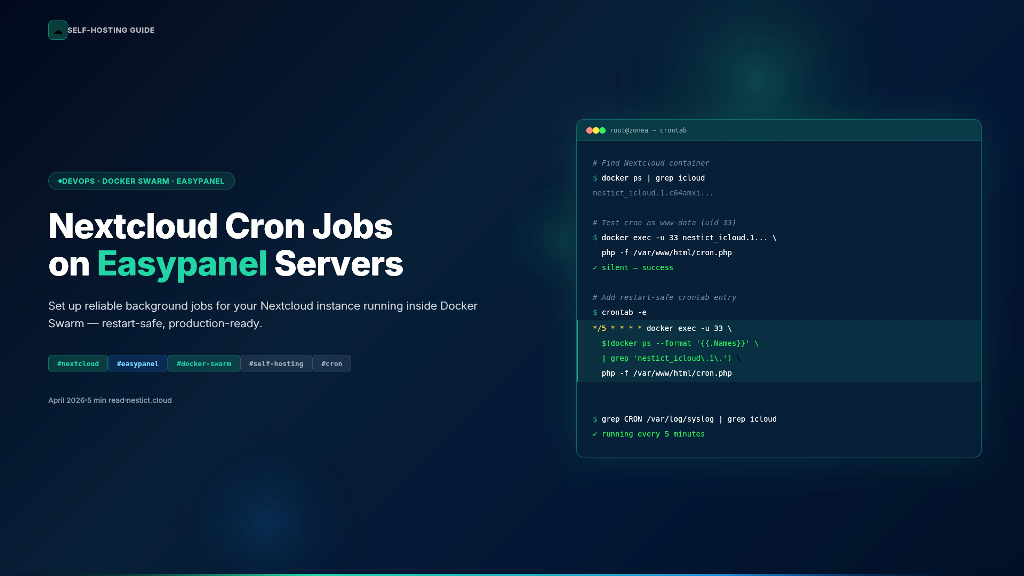
By default, Nextcloud runs background tasks using AJAX — meaning jobs only fire when someone is actively browsing the interface. For a healthy, production Nextcloud instance, you want a proper system cron running every five minutes regardless of user activity. This guide walks through how to set that up correctly on a server running Easypanel, where your app lives inside a Docker Swarm service.
The Stack
- Server OS: Ubuntu 24 (or any Linux with Docker Swarm)
- Panel: Easypanel
- Nextcloud: Running as a Docker service under a project (e.g.
nestict / icloud) - Data path:
/etc/easypanel/projects/nestict/icloud/volumes/data
Why Not Use cPanel?
Easypanel does not use cPanel. It manages containers via Docker Swarm, so your Nextcloud instance runs inside an isolated container — not directly on the host filesystem. The correct approach is to either use Easypanel's built-in cron feature (if available for your service type) or set up a host-level system cron that executes a command inside the running container.
We'll use the host-level system cron approach, which is the most reliable.
Step 1: Find Your Container Name
SSH into your server and run:
docker ps | grep icloud
You'll see output like this:
bdee9b9ec7e8 nextcloud:latest "/entrypoint.sh apac…" 6 days ago Up 6 days 80/tcp nestict_icloud.1.c64amxi01q8wx9gt4f58yt2jd
The name you need is in the last column: nestict_icloud.1.c64amxi01q8wx9gt4f58yt2jd
Note: The long suffix after .1. is a Docker Swarm task ID and changes every time the service restarts. We'll handle that below.Step 2: Test the Cron Command
First, try running Nextcloud's cron script manually:
docker exec nestict_icloud.1.c64amxi01q8wx9gt4f58yt2jd php -f /var/www/html/cron.php
If you see this error:
Console has to be executed with the user that owns the file config/config.php.
Current user id: 0
Owner id of config.php: 33
You need to run as user 33 (which is www-data inside the container):
docker exec -u 33 nestict_icloud.1.c64amxi01q8wx9gt4f58yt2jd php -f /var/www/html/cron.php
No output means success. ✓
Step 3: Add to System Crontab
Open the root crontab:
crontab -e
Add the following line — it uses a dynamic grep so the container ID suffix never causes it to break after a service restart:
*/5 * * * * docker exec -u 33 $(docker ps --format '{{.Names}}' | grep 'nestict_icloud\.1\.') php -f /var/www/html/cron.php
Save and exit. Verify it was saved:
crontab -l
Step 4: Enable Cron Mode in Nextcloud
Log into your Nextcloud admin account and navigate to:
Settings → Administration → Basic Settings → Background Jobs
Select Cron (not Ajax or Webcron). Nextcloud will now expect an external cron to call cron.php regularly.
Step 5: Verify It's Running
After 5–10 minutes, check the system log:
grep CRON /var/log/syslog | grep icloud
You should see entries like:
2026-04-11T13:45:01 zonea CRON[1222309]: (root) CMD (docker exec -u 33 ...)
That confirms your cron is firing correctly.
Why the Dynamic $(...) Matters
Easypanel uses Docker Swarm mode, which appends a unique task ID to every container name. If you hardcode the full container name in your crontab, the job silently breaks every time the container is redeployed or the server is rebooted. The grep pattern nestict_icloud\.1\. matches the stable service name while ignoring the rotating task ID suffix — making it restart-safe.
Summary
| Step | Command |
|---|---|
| Find container | docker ps | grep icloud |
| Test cron (correct user) | docker exec -u 33 <name> php -f /var/www/html/cron.php |
| Add to crontab | */5 * * * * docker exec -u 33 $(docker ps --format '{{.Names}}' | grep 'nestict_icloud\.1\.') php -f /var/www/html/cron.php |
| Enable in Nextcloud | Settings → Basic Settings → Background Jobs → Cron |
| Verify | grep CRON /var/log/syslog | grep icloud |
Your Nextcloud instance is now running background jobs reliably every five minutes — completely independent of user sessions, and safe across container restarts.
If you found this helpful, consider sharing it with the self-hosting community. Questions or corrections? Drop them in the comments below.