How to Fix 504 Gateway Time-out in WHM (Port 2087/2083) – Complete Troubleshooting Guide

Introduction
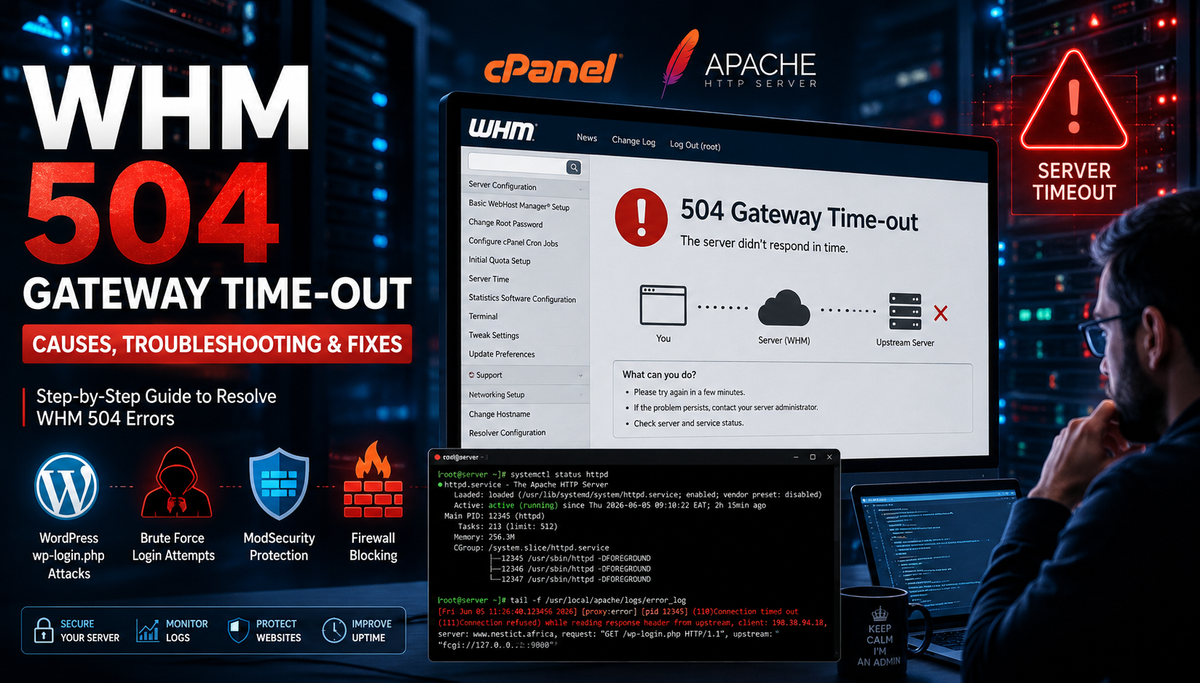
A 504 Gateway Time-out error in WHM (WebHost Manager) is a critical issue that prevents administrators from accessing server management functions. This problem typically occurs when WHM (running on ports 2087/2083) fails to receive a timely response from backend services such as Apache, PHP-FPM, or internal cPanel daemons.
In high-traffic environments—especially those hosting multiple WordPress sites—this error is often linked to resource exhaustion, brute-force traffic, or misconfigured services.
This guide provides a step-by-step, system-level troubleshooting approach to diagnose and permanently resolve the issue.
What Causes 504 Gateway Timeout in WHM?
A 504 error indicates:
The WHM frontend (cpsrvd) could not get a response from backend services within the allowed time.
Common causes include:
- High CPU or memory usage
- Disk I/O bottlenecks
- Apache or PHP-FPM overload
- ModSecurity processing delays
- WordPress brute-force attacks (wp-login.php floods)
- Stuck or crashed cPanel services
Step 1: Check Server Load
High system load is the most common cause.
Run:
uptime
top
What to look for:
- Load average significantly higher than CPU cores
- High
%CPUor%MEMusage - Many Apache (
httpd) or PHP processes
👉 If load is high, WHM will time out.
Step 2: Check Disk I/O Performance
Disk bottlenecks can freeze backend services.
iostat -x 1 5
Warning signs:
%utilclose to 100%- High
awaittimes
👉 This indicates storage is overloaded.
Step 3: Verify WHM Service (cpsrvd)
Check status:
systemctl status cpsrvd
Restart if needed:
systemctl restart cpsrvd
Step 4: Restart Core Services (Quick Recovery)
Run this sequence:
systemctl restart cpsrvd
systemctl restart tailwatchd
systemctl restart httpd
systemctl restart mariadb
This clears most temporary bottlenecks.
Step 5: Check Apache and PHP-FPM
Verify status:
systemctl status httpd
systemctl status php-fpm
If overloaded, restart:
systemctl restart httpd
systemctl restart php-fpm
Step 6: Analyze cPanel Logs
Check WHM error logs:
tail -n 100 /usr/local/cpanel/logs/error_log
Check Apache errors:
tail -n 100 /usr/local/apache/logs/error_log
Look for:
- Timeout errors
- Resource exhaustion warnings
- Module failures
Step 7: Identify WordPress Brute Force Attacks
If your server hosts multiple WordPress sites, attackers often target:
/wp-login.php/xmlrpc.php
Check activity:
grep "wp-login.php" /usr/local/apache/domlogs/* | awk '{print $1}' | sort | uniq -c | sort -nr | head
Indicators of attack:
- Many IPs making few requests each
- Repeated GET + POST patterns
- High frequency across domains
Step 8: Optimize ModSecurity (Critical)
Heavy ModSecurity processing can cause delays.
Recommended settings:
- Audit Log:
RelevantOnly - Format:
Serial
Avoid excessive logging.
Step 9: Implement WordPress Rate Limiting
Add this ModSecurity rule:
SecRule REQUEST_URI "@contains wp-login.php" \
"id:400020,phase:1,pass,nolog,setvar:ip.wp_login_hits=+1,expirevar:ip.wp_login_hits=60"

SecRule REQUEST_URI "@contains wp-login.php" \
"id:400021,phase:1,chain,deny,status:403,msg:'WP login burst blocked'"
SecRule IP:wp_login_hits "@gt 5"
Also block XML-RPC:
SecRule REQUEST_URI "@streq /xmlrpc.php" \
"id:400022,phase:1,deny,status:403,msg:'XML-RPC blocked'"
Step 10: Verify WHM Port Availability
Check if WHM is listening:
netstat -plnt | grep 2087
Expected output:
- cpsrvd process listening
Step 11: Apache Optimization (Recommended)
In WHM → Apache Configuration:
- KeepAlive: ON
- KeepAliveTimeout: 5
- MaxRequestWorkers: tuned to server RAM
- Timeout: reduce from 300 → 60–120
Step 12: Long-Term Fixes
To prevent future 504 errors:
✔ Optimize WordPress
- Disable XML-RPC
- Limit login attempts
- Use caching (Redis / OPcache)
✔ Reduce Bot Traffic
- Block abusive IP ranges
- Use ModSecurity rules (burst-based, not counters)
✔ Improve Server Capacity
- Upgrade disk to SSD/NVMe
- Increase RAM if under 4GB
- Use LiteSpeed or Nginx (optional)
Conclusion
A 504 Gateway Timeout in WHM is not a standalone issue—it is a symptom of deeper system strain. In most cases, the root cause is a combination of:
- High traffic (often malicious)
- Backend service delays
- Resource exhaustion
By applying:
- Proper service restarts
- WordPress attack mitigation
- ModSecurity optimization
- Apache tuning
You can restore WHM stability and prevent future downtime.
Quick Recovery Checklist
- Restart cpsrvd, Apache, MySQL
- Check server load and I/O
- Reduce ModSecurity logging
- Block wp-login and xmlrpc abuse
- Monitor logs continuously