Resolving WordPress 500 Internal Server Error Caused by Invalid .htaccess Directives
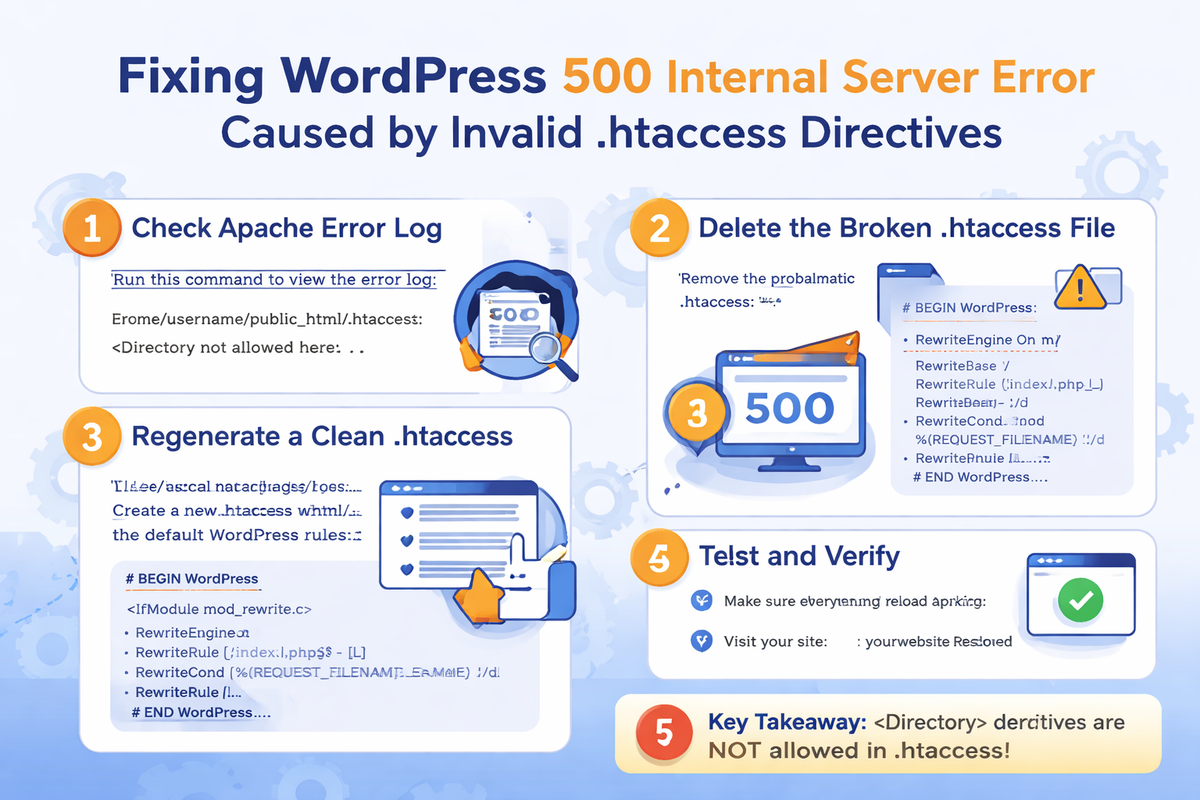
Below is a much more detailed, step-by-step technical blog post, written for sysadmins, WordPress administrators, and hosting providers, with all sensitive details masked and clear explanations of what, why, and how at each stage.
You can safely publish this on a public blog, documentation portal, or knowledge base.
Resolving WordPress 500 Internal Server Error Caused by Invalid .htaccess Directives
A 500 Internal Server Error is a generic HTTP response that indicates a server-side failure. In WordPress environments running on Apache, one of the most frequent and critical causes is a misconfigured .htaccess file.
This article documents a real-world incident, explains the exact root cause, and provides a clean, repeatable recovery process, including deleting and regenerating the .htaccess file correctly.
1. Understanding the Symptoms
When accessing the WordPress site, users encountered the following message:
500 Internal Server Error
The server encountered an internal error or misconfiguration and was unable to complete your request.
Additionally, a 500 error was encountered while trying to use an ErrorDocument to handle the request.
Key observations:
- The error occurs before WordPress loads
- No theme, plugin, or PHP error is displayed
- Even the custom error page fails to render
This strongly suggests an Apache-level configuration failure, not a WordPress application issue.
2. Why Browser Errors Are Not Enough
A 500 error page never tells you the cause. Apache intentionally hides internal details for security reasons.
Conclusion:
You must inspect the Apache error log to proceed correctly.
3. Inspecting the Apache Error Log
On cPanel/WHM-based Apache servers, the main error log is typically located at:
tail -f /usr/local/apache/logs/error_log
Upon accessing the site, the following log entries appeared:
/home/USERNAME/public_html/.htaccess: <Directory not allowed here
This message appeared repeatedly for every request.
4. Root Cause Analysis
What does <Directory not allowed here mean?
Apache is explicitly stating that a <Directory> directive was found in a context where it is forbidden.
Why is this a fatal error?
Apache configuration directives are context-sensitive.
The <Directory> directive is only valid in:
- Apache global configuration files (
httpd.conf) - VirtualHost configuration files
- Included server-level config files
It is never permitted inside .htaccess.
When Apache encounters this directive in .htaccess, it:
- Stops processing the request
- Immediately returns HTTP 500
- Does not pass execution to PHP or WordPress
5. Example of an Invalid .htaccess File ❌
The following configuration was found inside .htaccess:
<Directory /home/USERNAME/public_html>
    Options Indexes FollowSymLinks
    AllowOverride All
    Require all granted
</Directory>
This configuration is syntactically valid only at the server level, not in .htaccess.
6. Why This Happens in Real Environments
This type of error is commonly introduced during:
- cPanel or WHM backup restorations
- Manual server hardening
- Migration from Nginx or OpenLiteSpeed to Apache
- Copy-pasting VirtualHost examples from online guides
- Misguided security optimizations
In many cases, the administrator mistakenly treats .htaccess as a full Apache config file — it is not.
7. Immediate Recovery: Delete the Broken .htaccess
The fastest way to restore service is to remove the broken .htaccess file entirely.
cd /home/USERNAME/public_html
mv .htaccess .htaccess.bak
At this point:
- Apache no longer processes the invalid directives
- The 500 error usually disappears immediately
- WordPress may load without permalinks
This confirms that .htaccess was the root cause.
8. Regenerating a Clean WordPress .htaccess
Method 1: Manual Regeneration (Server-Side)
Create a new .htaccess file:
nano /home/USERNAME/public_html/.htaccess
Insert only the default WordPress rewrite rules:
# BEGIN WordPress
<IfModule mod_rewrite.c>
RewriteEngine On
RewriteBase /
RewriteRule ^index\.php$ - [L]
RewriteCond %{REQUEST_FILENAME} !-f
RewriteCond %{REQUEST_FILENAME} !-d
RewriteRule . /index.php [L]
</IfModule>
# END WordPress
Save and exit.
Method 2: Automatic Regeneration (WordPress Admin)
If the WordPress admin panel is accessible:
- Log in to WordPress Admin
- Go to Settings → Permalinks
- Click Save Changes (no changes required)
WordPress will automatically regenerate a valid .htaccess.
9. Reload Apache Safely
Apply the configuration changes without interrupting active connections:
systemctl reload httpd
Or:
apachectl graceful
10. Validate Apache Configuration
Always validate Apache syntax after configuration changes:
apachectl -t
Expected output:
Syntax OK
If errors appear here, Apache will eventually fail to reload or restart.
11. Where <Directory> Directives Actually Belong
If <Directory> rules are genuinely required, they must be placed in server-level configuration files, such as:
/usr/local/apache/conf/userdata/std/2_4/USERNAME/DOMAIN/
After adding server-level directives, rebuild Apache configuration:
/scripts/rebuildhttpdconf
Then reload Apache.
12. Final Outcome
After:
- Deleting the invalid
.htaccess - Regenerating a clean WordPress rewrite file
- Reloading Apache
The results were immediate:
- ✅ 500 Internal Server Error resolved
- ✅ WordPress loads correctly
- ✅ No plugin, theme, or PHP rollback required
- ✅ Server stability restored
13. Key Takeaways
.htaccessis not a full Apache configuration file- A single invalid directive can take down an entire site
- Apache error logs are always the first place to look
- When in doubt, delete and regenerate
.htaccess
14. Recommended Best Practice
Treat .htaccess as a minimal override mechanism, not a server configuration replacement.For performance, security, and stability, move complex rules to server-level configs whenever possible.