Upgrading from Windows 10 to Windows 11 Insider Preview: What You Need to Know

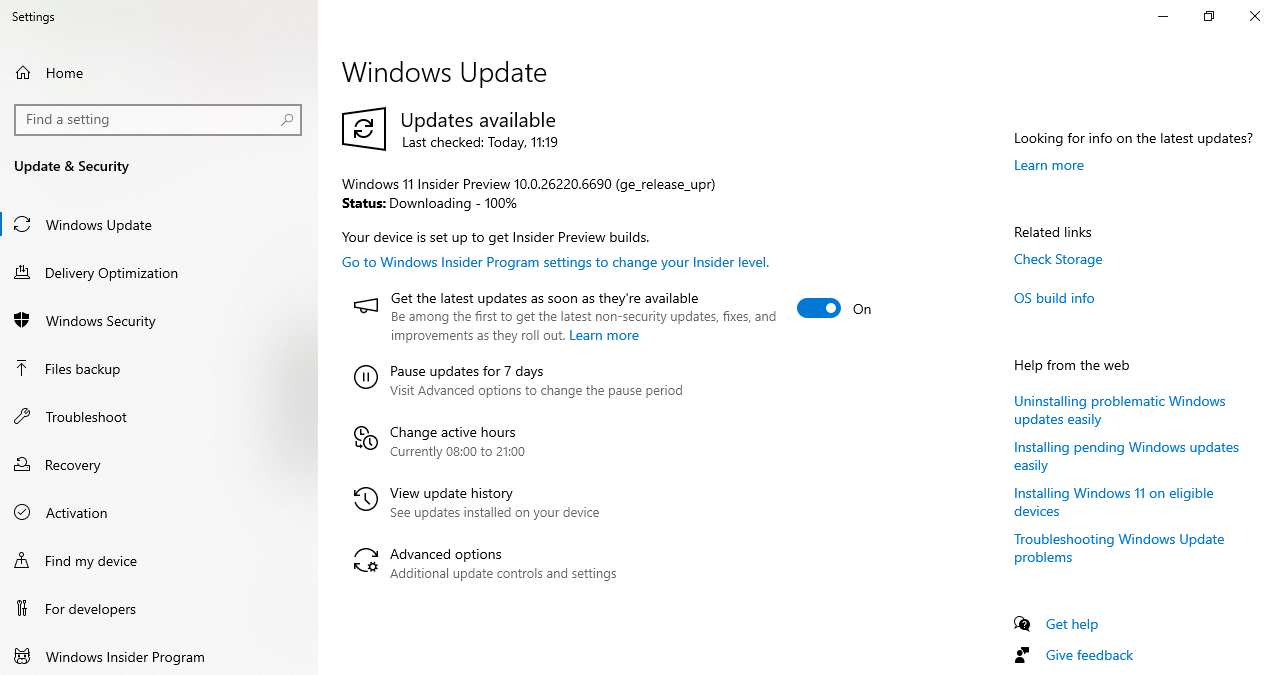
If you are currently using Windows 10 and notice that your system is downloading a Windows 11 Insider Preview build (like version 10.0.26220.6690), you may be wondering what’s happening and whether you should go ahead with the installation. This blog explains everything you need to know before making the switch.
What Is the Windows Insider Program?
The Windows Insider Program is Microsoft’s platform that allows users to test upcoming features and early builds of Windows. It’s divided into channels:
- Canary Channel – Very early builds, experimental, often unstable.
- Dev Channel – Features under active development, less stable than Beta.
- Beta Channel – More reliable, closely aligned with stable releases.
- Release Preview Channel – Stable builds, just before general release.
If your system is downloading a Windows 11 Insider Preview, it means your PC is enrolled in one of these channels.
What Happens When You Upgrade?
- Your system will move from Windows 10 to Windows 11.
- You’ll gain access to new features before the public.
- Updates may arrive more frequently than regular Windows updates.
- Your PC may face bugs, crashes, or compatibility issues, depending on the channel.
Pros of Installing Windows 11 Insider Preview
✅ Early access to the latest Windows features.
✅ Opportunity to test new designs, tools, and settings.
✅ Helps Microsoft improve Windows through feedback.
✅ Free upgrade for existing Windows 10 users.
Cons of Installing Windows 11 Insider Preview
⚠️ Stability issues – Insider builds are experimental.
⚠️ Possible app or driver incompatibility.
⚠️ Frequent updates that may interrupt work.
⚠️ Harder to roll back to Windows 10 once you’ve upgraded.
How to Upgrade from Windows 10
If you’re ready to try Windows 11 Insider Preview, here’s what you need to do:
- Check your Insider enrollment
- Go to Settings > Update & Security > Windows Insider Program.
- Confirm your Microsoft account is linked.
- Download the build
- Windows Update will automatically download the Insider Preview (as seen in your update status).
- Restart to install
- Once downloaded, you’ll be prompted to restart your PC.
- The installation process may take 30–90 minutes depending on your hardware.
- Set up Windows 11
- After reboot, follow the on-screen instructions to complete the upgrade.
How to Stay on Windows 10
If you don’t want to upgrade and prefer stability:
- Go to Settings > Update & Security > Windows Insider Program.
- Choose Stop getting preview builds.
- Or opt out of Insider builds completely to continue receiving only stable Windows 10 updates.
Wrap up
Upgrading to Windows 11 Insider Preview is exciting for tech enthusiasts and testers, but it’s not always ideal for users who need maximum stability. If your PC is mission-critical (work, school, or business use), it’s best to stay on Windows 10 stable builds until Windows 11’s final version is available.
However, if you love exploring new features and don’t mind occasional bugs, then installing the Insider Preview is a great way to experience the future of Windows today.