Fixing Keyboard and Mouse Freezing in Windows 11 (Complete Troubleshooting Guide)
Fixing Keyboard and Mouse Freezing in Windows 11 (Complete Troubleshooting Guide)

Fixing Keyboard and Mouse Freezing in Windows 11 (Complete Troubleshooting Guide)
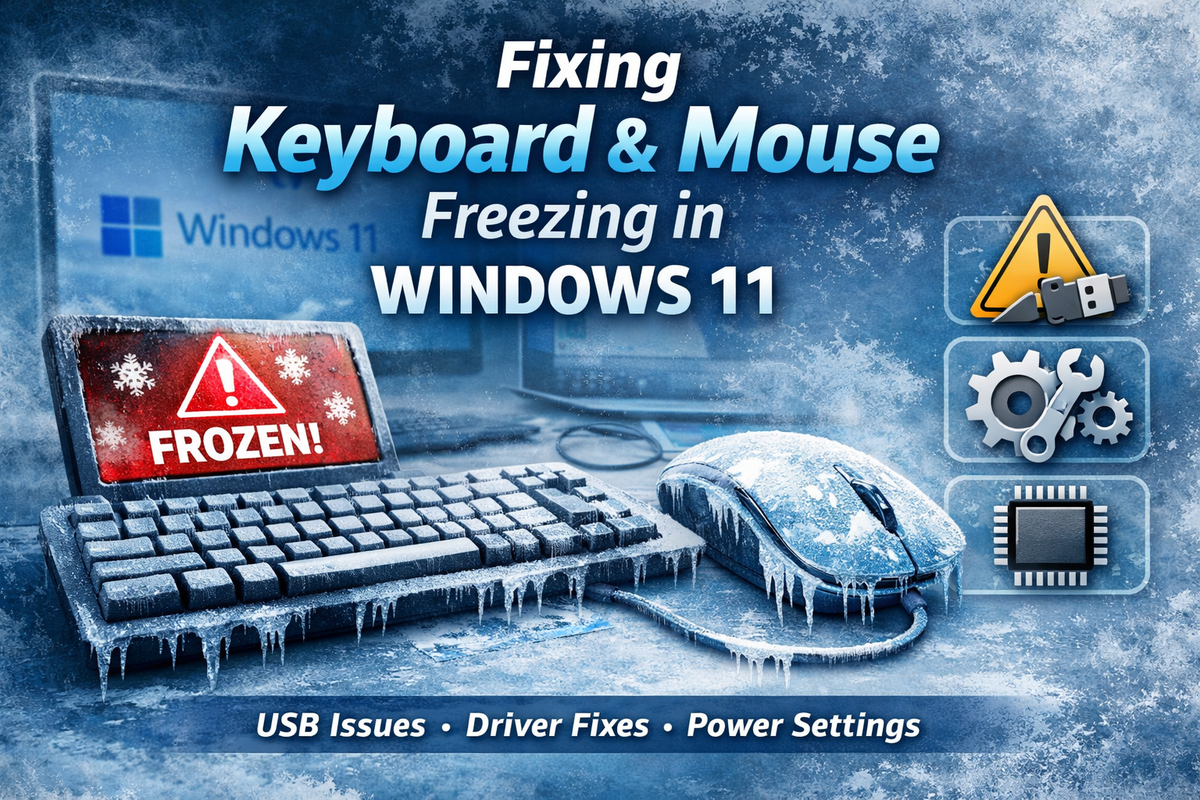
Few things are more frustrating than working on your computer and suddenly your keyboard and mouse stop responding. The screen continues working, programs keep running, but your input devices freeze until you restart the computer. It feels like the PC suddenly forgot how to listen.
This issue is fairly common in Windows 11, especially with wired USB keyboards and mice. The good news is that it is usually caused by software, driver, or power management settings and can be fixed without replacing hardware.
This guide walks you through the most effective solutions.
Why Keyboard and Mouse Freeze in Windows 11
When both the keyboard and mouse freeze at the same time but the screen remains active, the issue usually involves:
- USB controller driver problems
- Power management shutting down USB ports
- Outdated motherboard chipset drivers
- Faulty USB ports
- Windows system file corruption
Think of it like a train station where trains are fine but the signal controller temporarily stops directing traffic. The devices are working, but communication with the system stops.
Solution 1: Disable USB Power Management
One of the most common causes of USB freezing is power saving settings in Windows.
Windows sometimes turns off USB ports to save power, especially on newer systems.
Steps
- Right-click Start
- Click Device Manager
- Expand Universal Serial Bus controllers
- Double-click USB Root Hub
- Go to Power Management
- Uncheck:
✔ Allow the computer to turn off this device to save power
- Click OK
Repeat this for all USB Root Hub and Generic USB Hub entries.
Restart the computer.
Solution 2: Reinstall USB Controllers
Sometimes the USB drivers become corrupted. Reinstalling them resets the entire USB system.
Steps
- Open Device Manager
- Expand Universal Serial Bus controllers
- Right-click and uninstall the following items:
- USB Root Hub
- Generic USB Hub
- USB Host Controller
- Restart the PC
After restarting, **Windows 11 will automatically reinstall the drivers.
Solution 3: Disable USB Selective Suspend
USB Selective Suspend allows Windows to disable USB ports when they appear idle. While it saves energy, it can also cause devices to freeze.
Steps
- Open Control Panel
- Go to Power Options
- Click Change Plan Settings
- Click Change Advanced Power Settings
- Expand USB Settings
- Set:
USB Selective Suspend → Disabled
Apply the changes and restart your PC.
Solution 4: Update Motherboard Chipset Drivers
Your motherboard chipset controls how USB devices communicate with the system. If the chipset driver is outdated, USB devices may randomly disconnect or freeze.
Update the latest drivers from your motherboard manufacturer such as:
- Intel
- AMD
- ASUS
- Gigabyte
- MSI
Download and install the latest chipset and USB drivers from the official website.
Solution 5: Check Event Viewer for USB Errors
Windows logs hardware errors that can help identify the cause.
Steps
- Right-click Start
- Click Event Viewer
- Navigate to:
Windows Logs → System
Look for error messages related to:
- USBHUB
- USBXHCI
- HID Device
These errors indicate USB controller crashes.
Solution 6: Run Windows System File Checker
Corrupted Windows files can also cause USB device problems.
Steps
Open Command Prompt as Administrator and run:
sfc /scannow
After the scan completes, run:
DISM /Online /Cleanup-Image /RestoreHealth
Restart the computer afterwards.
Solution 7: Test Different USB Ports
Sometimes the problem is simply the USB port.
Try the following:
- Plug devices into rear motherboard USB ports
- Avoid front panel USB ports
- Avoid using USB hubs
- Test with a different keyboard or mouse
When Hardware Could Be the Problem
If the freezing continues after trying all software fixes, the issue may be related to:
- Failing motherboard USB controller
- Faulty power supply
- Damaged USB ports
In such cases, using a USB expansion card or replacing the motherboard may resolve the problem.
Wrap up
Keyboard and mouse freezing in Windows 11 is usually caused by USB driver or power management settings rather than faulty devices. In most cases, disabling USB power saving and reinstalling USB controllers resolves the issue quickly.
If the problem persists, updating motherboard chipset drivers and checking Windows system files should restore stable USB performance.