Fix: PDFs Automatically Opening After Updating Adobe Acrobat Reader DC

Fix: PDFs Automatically Opening After Updating Adobe Acrobat Reader DC
After updating to the latest version of Adobe Acrobat Reader DC, many users notice a sudden change in behavior:
👉 Downloaded PDF files open automatically immediately after download, even though this did not happen before the update.
This article explains why this happens, confirms the exact setting responsible, and provides a step-by-step permanent fix.
Problem Overview
Symptoms
- PDFs downloaded from browsers (Chrome, Edge, Firefox, etc.) open automatically
- Behavior started only after updating Adobe Acrobat Reader DC
- Browser settings appear unchanged
- Happens even when you just want to download, not view
Impact
- Disrupts workflow
- Causes unnecessary pop-ups
- Annoying for users handling many PDFs
- Confusing in enterprise environments
Root Cause (Confirmed)
The issue is not a browser bug.
After recent Adobe Acrobat Reader DC updates, Adobe re-enables a default preference located here:
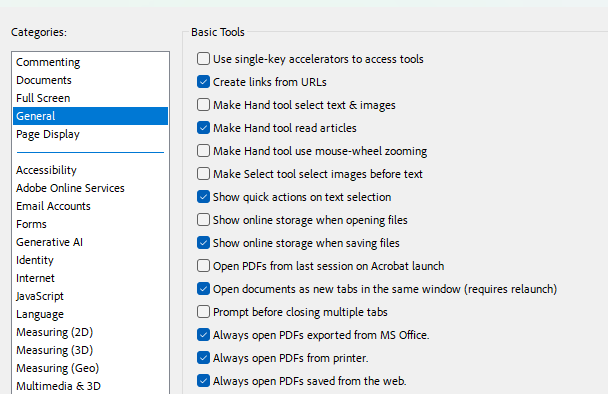
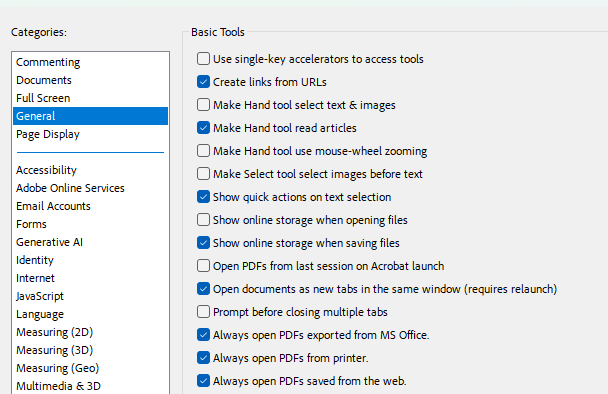
Adobe Acrobat Reader DC → Preferences → General → Basic Tools
The exact setting responsible is:
✅ “Always open PDFs saved from the web”
When this option is enabled:
- Any PDF downloaded from a web browser
- Automatically opens in Adobe Reader after download completes
This setting is commonly reset to ON after Adobe updates, which explains why the behavior suddenly appeared.
How to Fix It (Permanent Solution)
Step-by-Step: Disable Auto-Opening of Downloaded PDFs
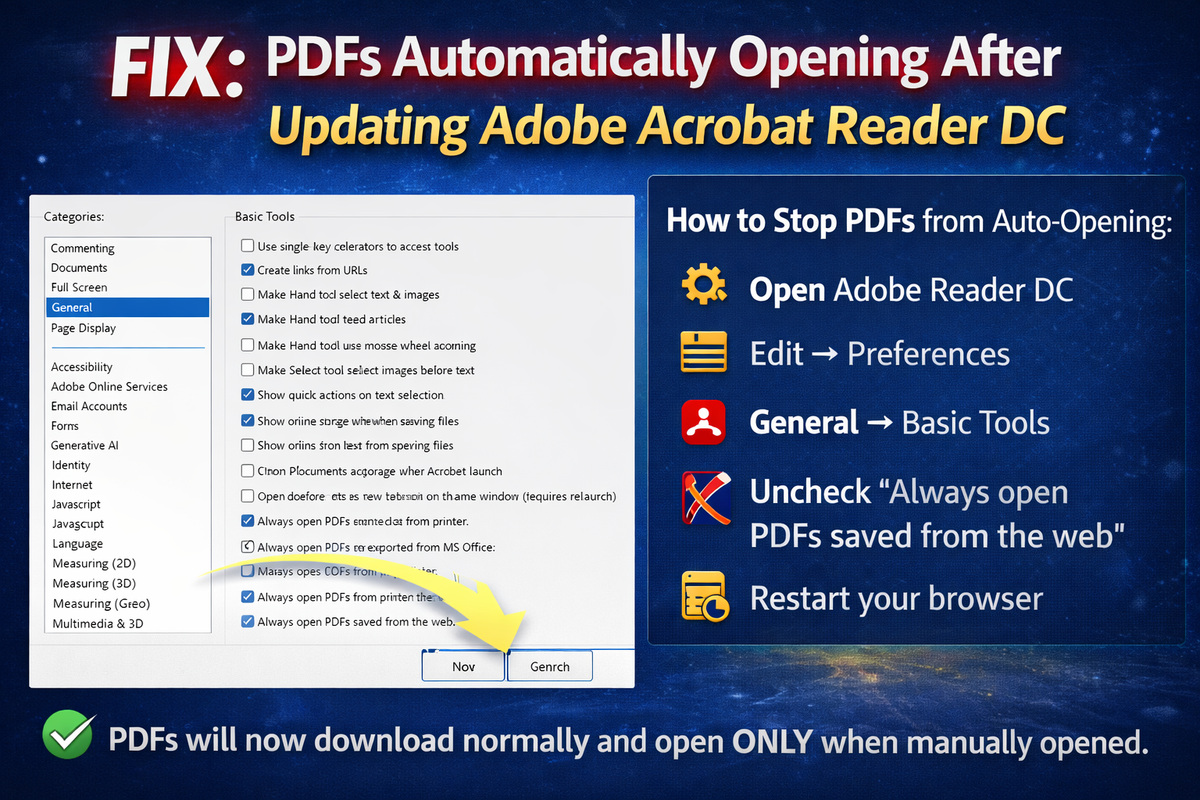
- Open Adobe Acrobat Reader DC
- Click Edit (top menu)
- Select Preferences
- Click General in the left panel
- Under Basic Tools, locate:
- Always open PDFs saved from the web
- Uncheck this option ❌
- Click OK
- Close Adobe Acrobat Reader
- Restart your browser (important)
✅ Result:
PDFs will now download normally and will only open when you manually open them.
Screenshot Reference (What to Look For)
In the Adobe Preferences screen:
- Category: General
- Section: Basic Tools
- Option to disable:
- ❌ Always open PDFs saved from the web
This single checkbox controls the entire behavior.
Why Adobe Enables This by Default
Adobe enables this option to:
- Improve “instant access” to documents
- Reduce confusion for less technical users
- Align with Adobe Document Cloud workflows
However, for power users, professionals, and IT-managed systems, this behavior is often undesirable.
Related Settings (Safe to Ignore)
The following options do NOT cause PDFs to auto-open after download:
- Open documents as new tabs in the same window
- Always open PDFs exported from MS Office
- Always open PDFs from printer
- Prompt before closing multiple tabs
Only “Always open PDFs saved from the web” affects downloads.
Browser Settings vs Adobe Settings
| Control Layer | Role |
|---|---|
| Browser PDF settings | Decide whether to download or preview |
| Adobe Reader setting | Decides what happens after download |
| Windows file association | Controls double-click behavior |
Even if your browser is set to Download PDFs, Adobe can still auto-open them if this setting is enabled.
Enterprise / IT Administrator Notes
- Adobe updates may reset user preferences
- This setting is user-specific
- Can be enforced via:
- Registry keys
- Preconfigured deployments
- Post-install scripts
- Recommended to disable in managed environments
Security & Productivity Considerations
Leaving auto-open enabled may:
- Expose users to malicious PDFs
- Interrupt bulk download workflows
- Cause unnecessary system load
Best practice is to download first, open intentionally.
Summary
What Changed?
Adobe Reader update reset a preference.
What’s the Cause?
“Always open PDFs saved from the web” was enabled.
How to Fix?
Disable it in:
Edit → Preferences → General → Basic Tools
Is It a Bug?
No — it’s a default behavior reset.
Final Recommendation
After every major Adobe Acrobat Reader DC update:
- Review General → Basic Tools
- Disable auto-open for downloaded PDFs
- Restart browser to apply changes